Good day my tech pilgrims, things have been going steadily this week not a lot of things to report. But I wanted to begin by working on the next steps of our home network build, after this one we are going to focus on building some services and getting our WAP up and running so we can have Wifi available to use on the home network. This article is going to be a little shorter than normal since there’s a lot of material to cover. Let’s begin…
Picking up where we left off
So to pick up where we left off we’re going to go over one thing that I’ve observed with the current set up. Remember, we haven’t fully completed the installation of OPNSense, it needs to have some more settings configured. But I mentioned that in this set up our ‘gateway’ that we built is simply a Wifi extender. There is a DHCP setting that we can toggle and I was curious to see if it had any effect on performance. To be honest not a whole lot the only thing that I can mention is that with the setting off. The WAN DHCP client gets kicked back up to the gateway router upstairs.
For my privacy and security reasons I’m not going to mention what my actual home lab IP address ranges are but I can say an example. If my Gateway (not my extender) the one provided from the ISP is at a default IP of 10.0.1.120, then I will make my extender with the same range, but it also has the ability to create it’s own LAN. So for these purposes I would put my default IP address at something like 10.0.1.121, it’s within the range of the established network without hopefully causing any conflicts.
I define the IP range as something like 10.0.1.124 through 10.0.1.250 on my wifi extender. From there using the same settings we covered last week I set the primary DNS servers as 1.1.1.1 to use Cloudflare’s resolver and 9.9.9.9 to use Quad9’s resolver. So I just wanted to get that out of the way.
Configuring OPNSense
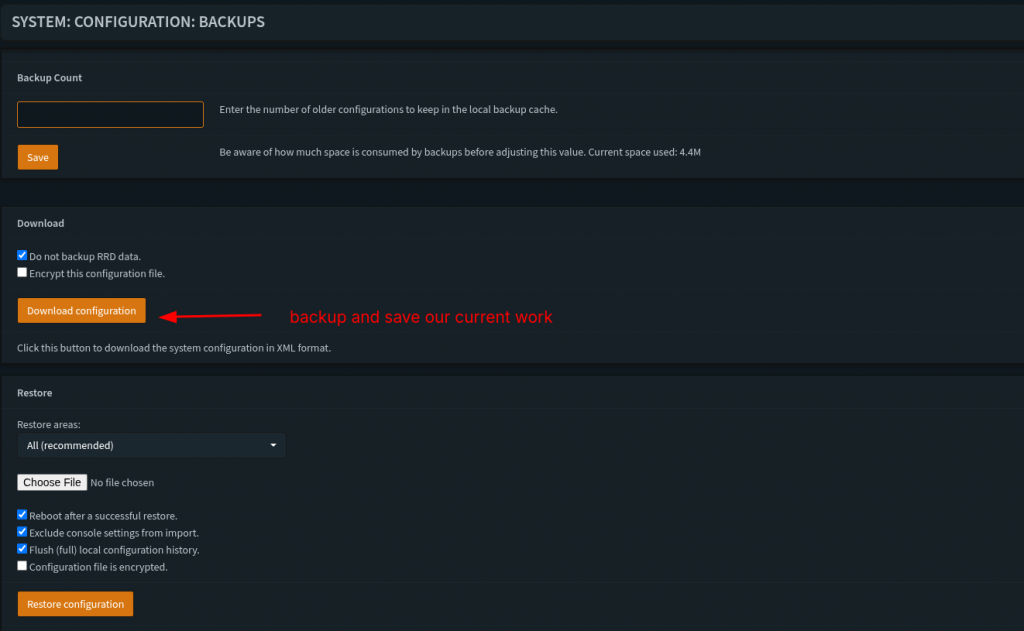
So in my opinion before starting this part of the build it might be a good idea to first off grab a copy of the current configuration that we’ve done so far. I have learned this the hard way over the iterations that I have done this type of project that there will always be something, like a small change some where that you ‘Save’ and ‘Apply’ and something happens that bricks your system or locks you out of the box that you’re working on. So it’s nice to get into the habit that if we make a change somewhere to back up our configuration before we start building. Head over to this section below and save your current configuration:
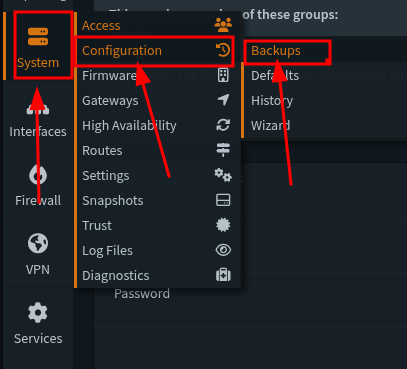
In this fist step I’m going to veer off a little bit from The Network Guy’s walkthrough and instead do our general configuration from the Wizard. So below are the choices that I decided to do:
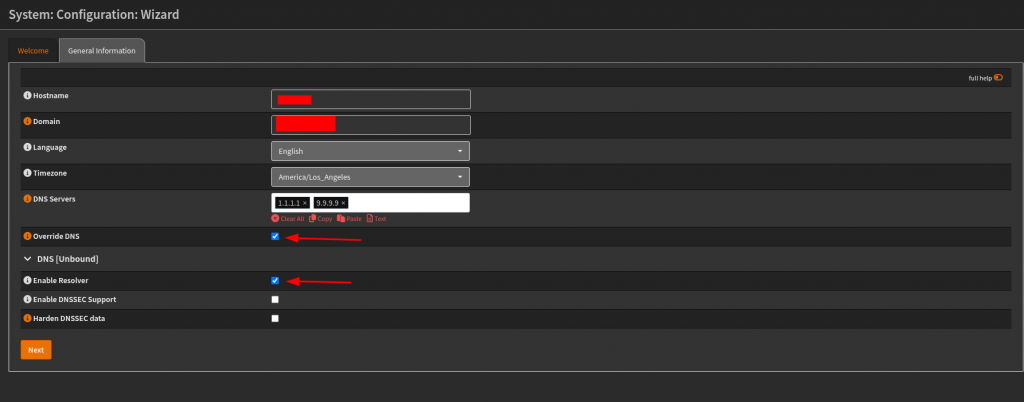
For the first step I put in my hostname that I want to go by, define time zone and default languages. For the DNS servers I set them to the choices that I made earlier from the previous section. On this step I later changed the setting in Unbound DNS > General settings to allow DNSSEC support. That’s not showing in this picture.
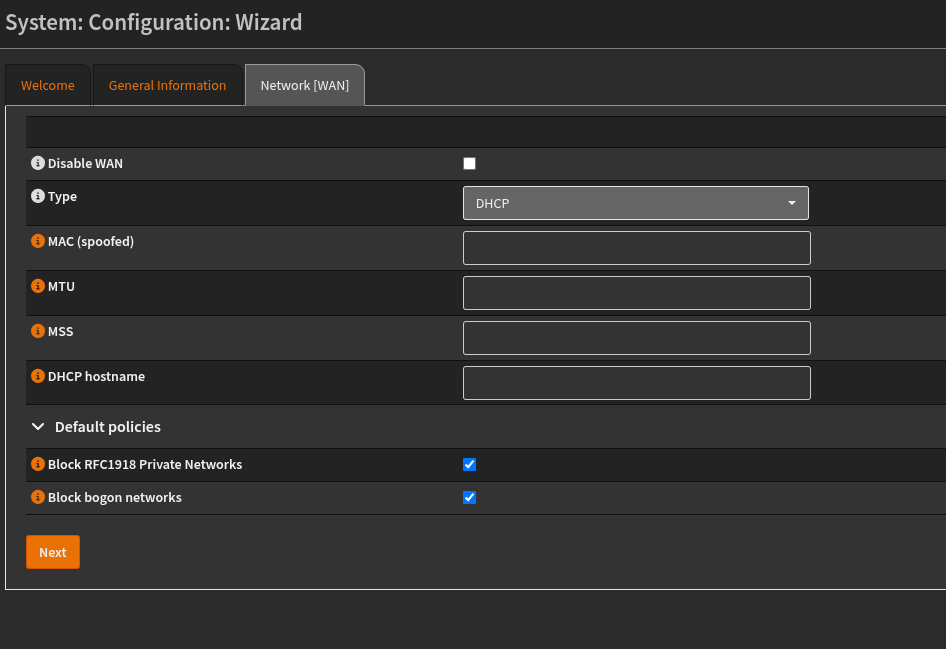
For this step, I left the selections as is, so not really a lot to mention on this one. For below:
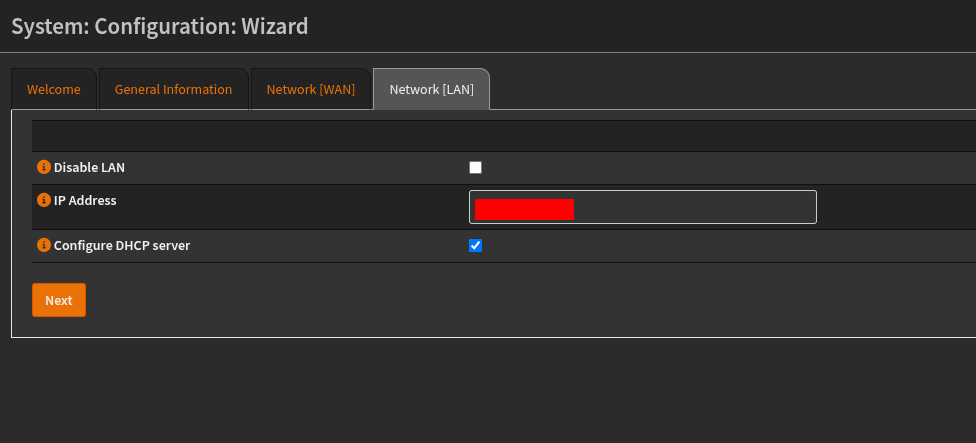
On this step, we are configuring the settings for the IP address on the LAN, here you can set it as you want, and in this case we’re going to make sure that DHCP is up and running. If you are keeping the default settings, then not really a lot should be changed.
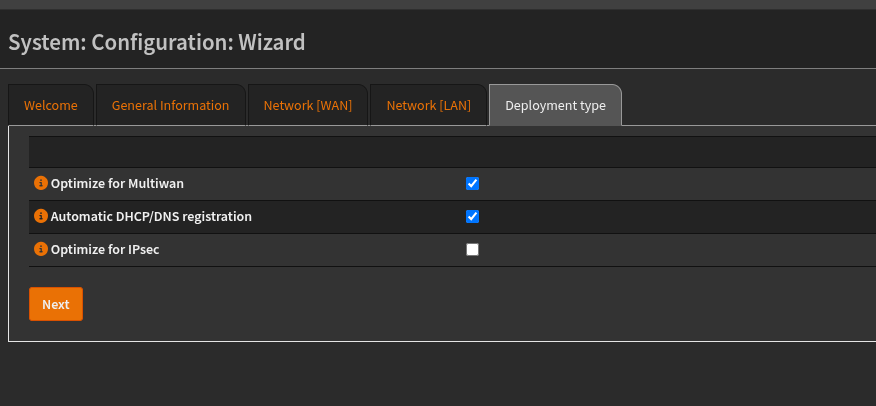
I think these settings were selected for me so I didn’t change anything here. I need to make sure that DHCP/DNS registration is automated. So when we add clients it will automatically receive IP addresses and add the selection to the DNS agents that are running. I think with this step I’m eventually going to move away from DHCPmasq and over the Kea. Since the OPNsense release 26.1 they stopped support for ISC DHCP so I will need to fine tune the DHCP leases and range to the set that I want. I have the VLAN zones that I want to make but it’ll have to be configured more.
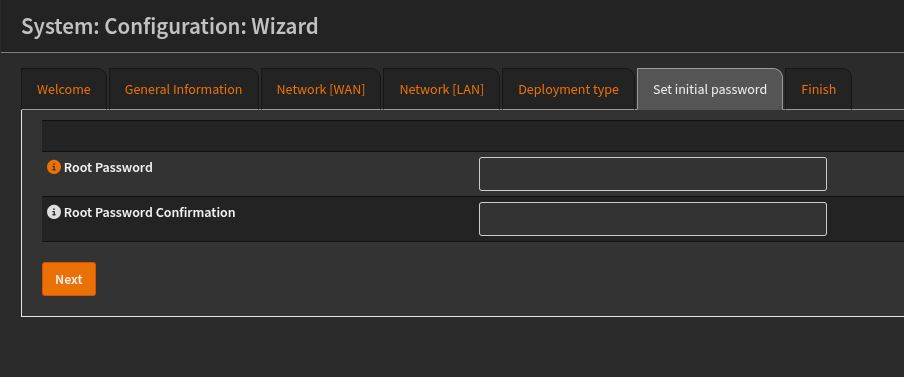
Last step is to confirm the root password. Which should be pretty simple enough.
Setting up another user and TOTP:
So my approach to this network build is to have two users, one is an admin that can implement the router changes through the UI. And the other is a standard
user who has SSH capabilities to do the same thing.
Before we do a new user we need to setup a server that allows us to do MFA, in this example we’re going to be using a TOTP or a Time Based One Time Password. To do that head over to this section:
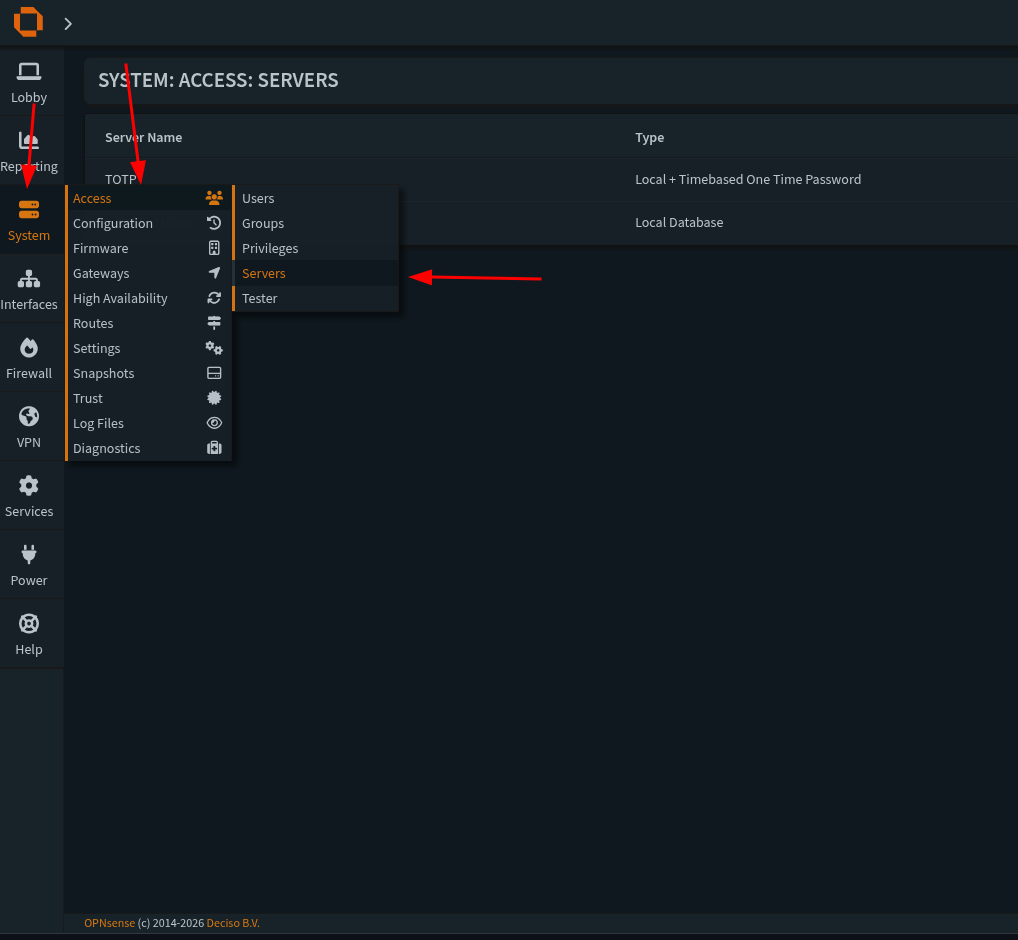
Then we need to go to this section:

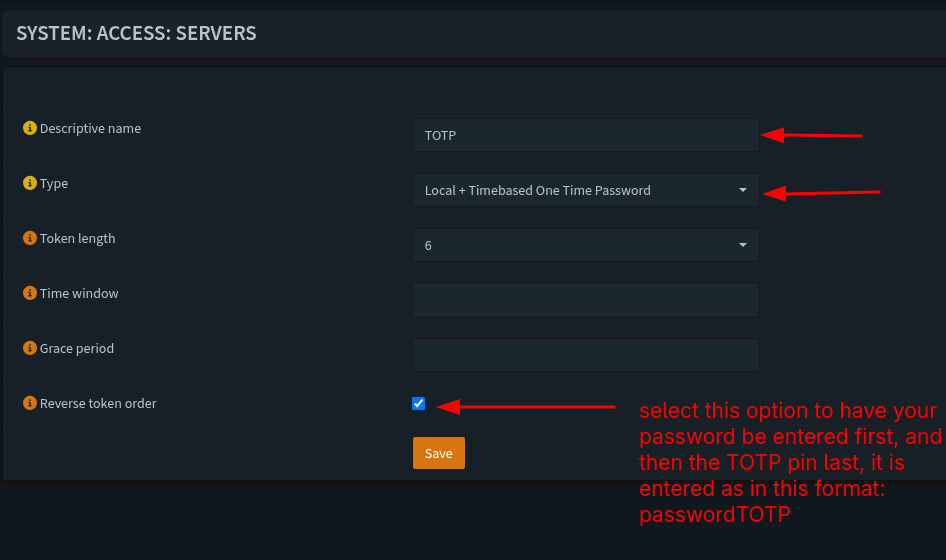
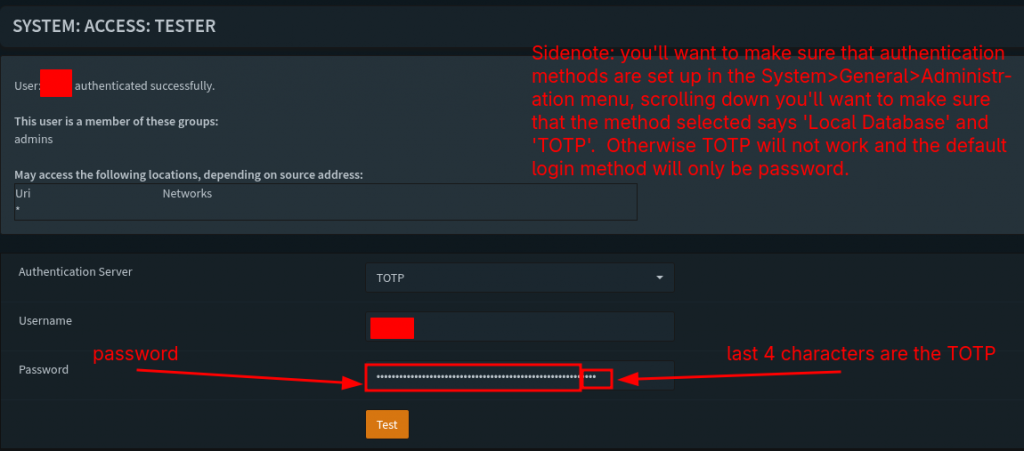
When we create a new server we’ll need to select a name to call it (we can call it whatever we want). The type needs to be both Local + Timebased Password. Token length should be 6 and I like to have it be reversed because it’ll have us enter our password and login information first and then the TOTP after on the same line as the password. I’ll show an upcoming screenshot with this process. After that we save our settings and we’ll have our server setup correctly. Now we’re ready to create a new user.
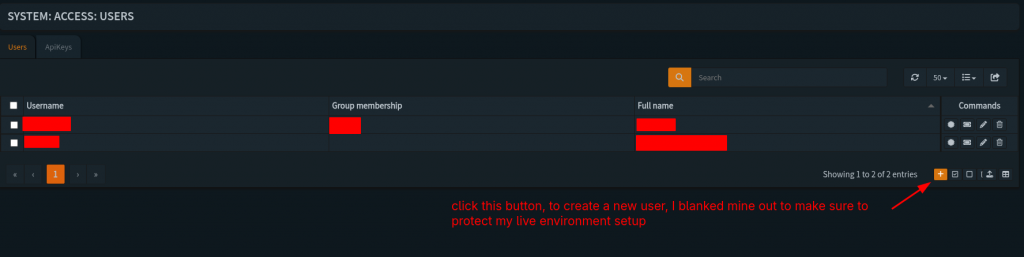
So we’re going to setup a new user in this case to had admin access through the UI, navigate over to this section:
But instead of selecting servers we’re going to select users. Under that section when we’re there we need to hit the plus icon at this location:
Fill out the information below from top to bottom
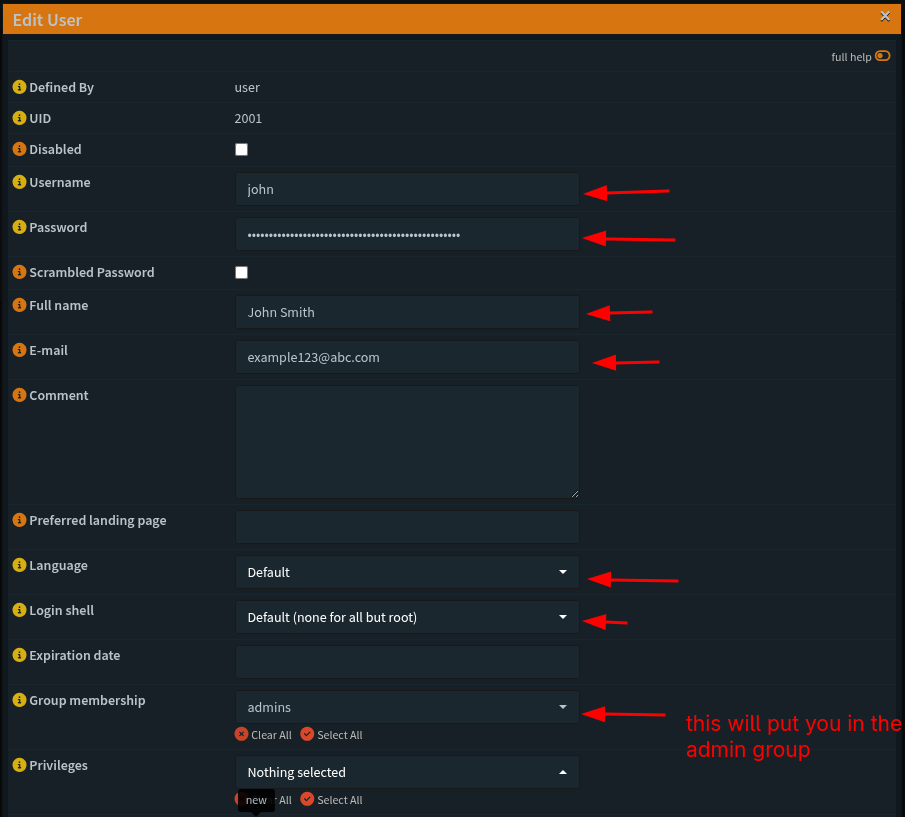
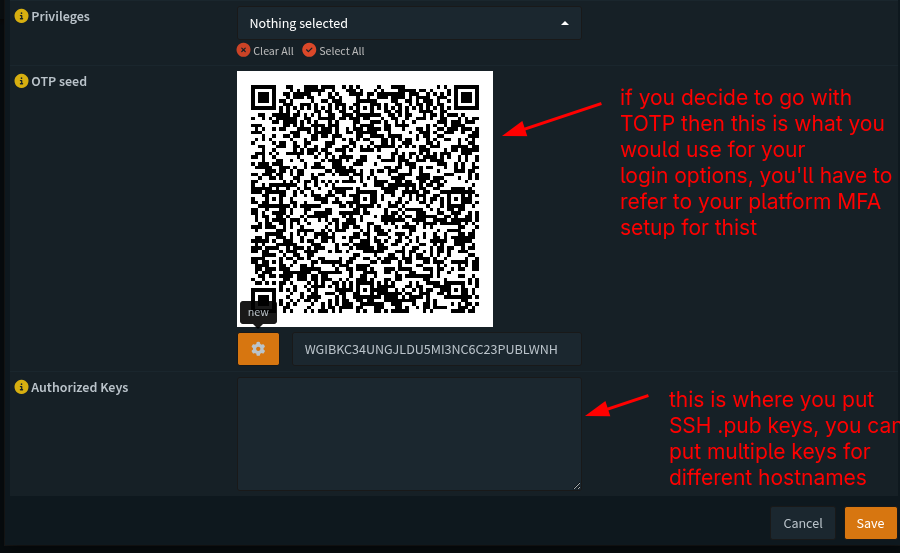
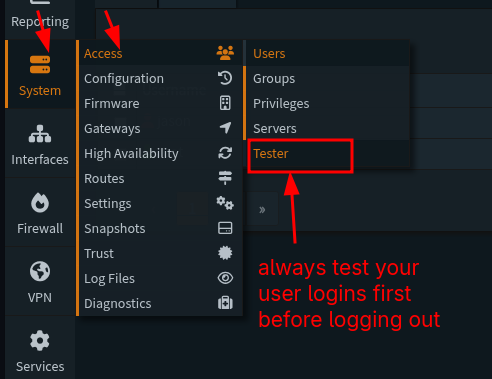
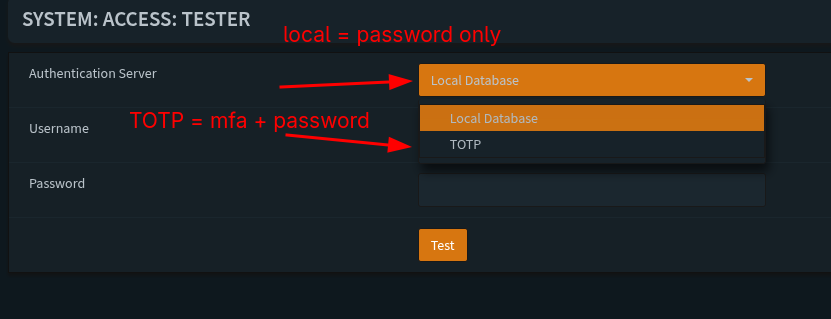
With these settings locked in we should be good to test our user info for the TOTP and password, head over to this section and enter the following information:
We should have this message if all of the test login information was successful:
Side note when we head back to our user info we created we can add SSH public keys to these profiles, and we can add multiple keys for different machiens we want to use.
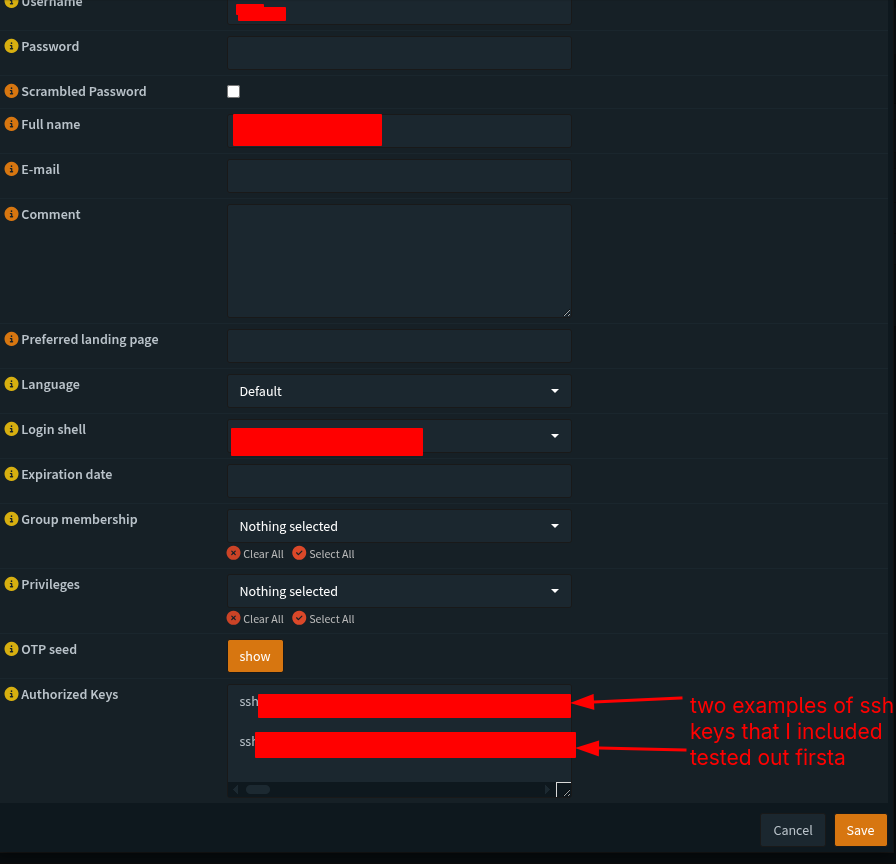
We should be good to save the settings and logout to test the login info we set up.
System Settings:
So for our next set up we’re going to refer back to The Network Guy’s writeup and navigate over to the following sections:
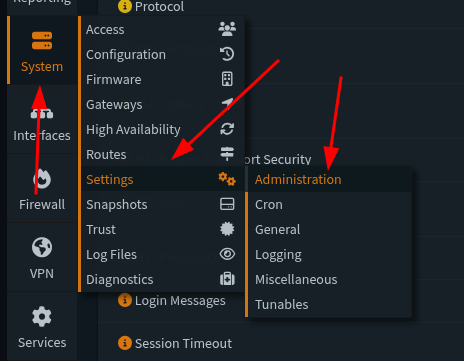
From there, we are going to select the following sections:
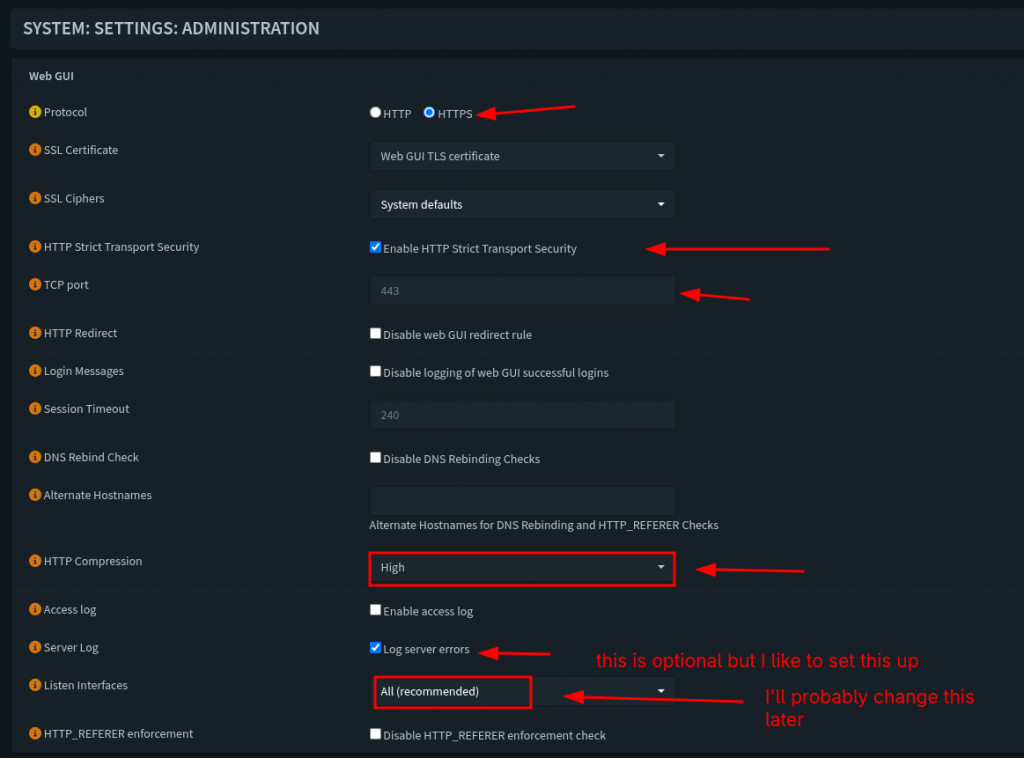
For this section these are the settings that I personally selected. We want to enforce strict HTTPS protocol for our servers and traffic connection. The next one we’ll do is select the option to enforce transport of this protocol for traffic. TCP port is 443 for now, I don’t think this setting will change as I update this server and box. We’re going to check and enable that the router listens on ‘All Interfaces’, we’re also going to keep the default SSH port to port 22. We will the ‘Listen Interfaces’ feature later as we we setup some VLANs and segment our network for Wifi and a Management layer.
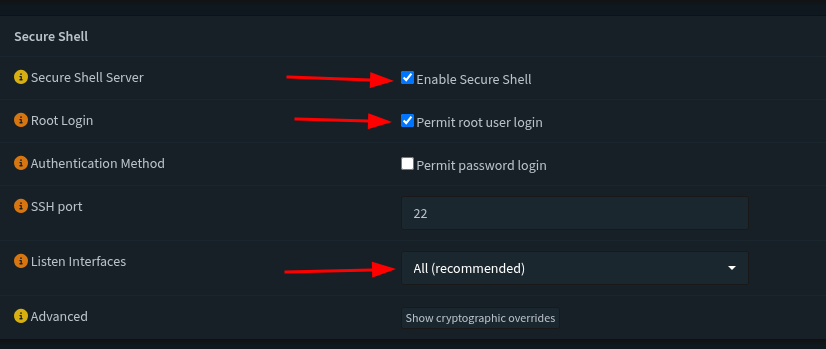
This section we’re going to enable secure shell, and also permit root login. The interfaces we’ll listen to are all, this last setting might change as we add more fine tuned options and features to the network. We’re going to check and enable that the router listens on ‘All Interfaces’, we’re also going to keep the default SSH port to port 22.
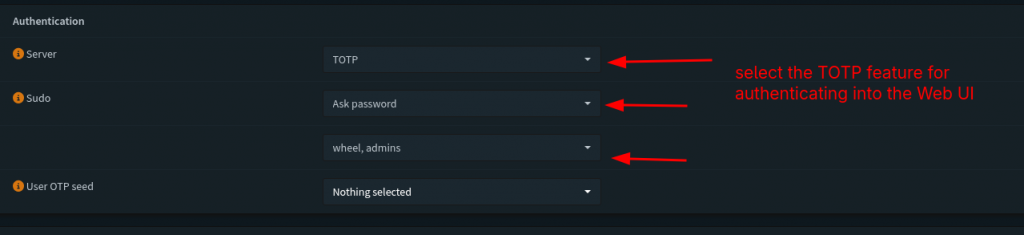
This section defines the behavior we’ll do for authenticatiing our login information for our users. By default for the authentication server it selects is ‘local database’. But since we selected and built the TOTP server and tested the login info we’ll select TOTP as the server to use. For sudo users we’ll always ask for a password, and we want to make sure the user we’re configuring this for is a part of the admin group.
Last step for miscellaneous settings
Last step we’re going to do is head over to the miscellaneous section in the Settings:
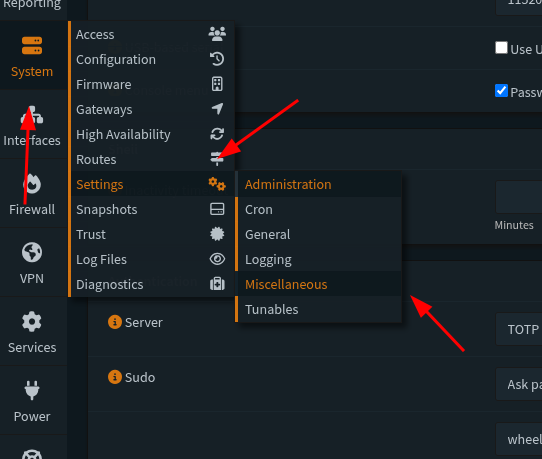
We’re going to adjust and enable the following:
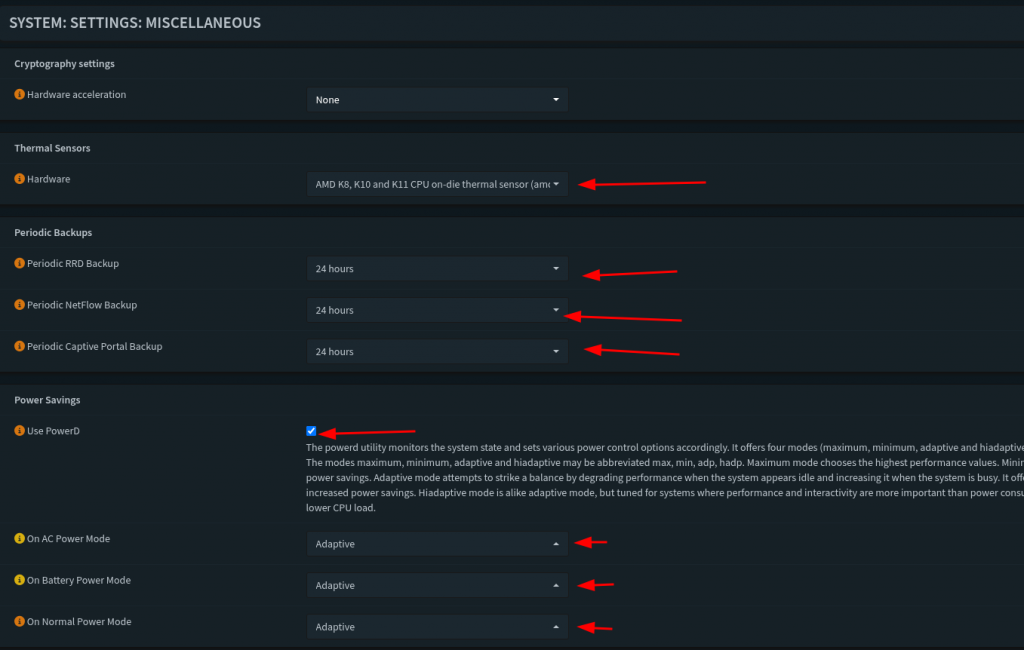
So for this last section we’re going to skip Hardware accaleration. I want to make sure I can monitor my CPU temperature, this PC is a little older than normal so I’m not too worried about temperature loads exceeding safe levels. I want to enable RDP, Netflow, and Captive Portal backups just for monitoring my traffic. Next I sec all my power options to adaptive, I don’t want it to eat up so much power, but still allow me to have some responsiveness when using the box.
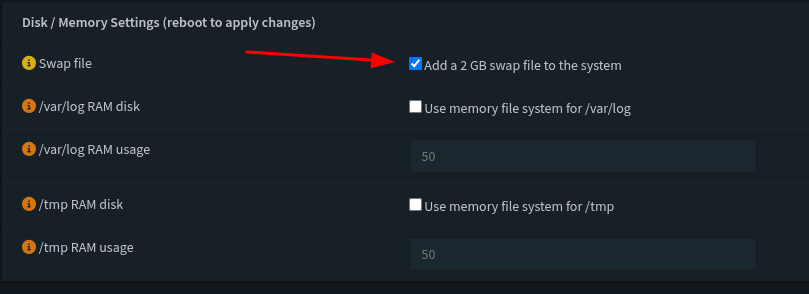
The last section I changed and saved was to increase the swap file for the disk memory allocation. I have the space for it on this machine so it shouldn’t be a problem. And with that we’re done with the basic configuration of this router. Next I’m going to be going off of The Network Guy’s complete walk-through and we’re going to dive into VLANs and Firewall rules. If I can keep this next section relatively brief I’ll see about getting the WiFi AP up and running. The Network Guy’s walk-through’s are way more detailed than mine but we also set up a really good management network that I want to enable on this home network to make sure that I have the means to have a separate network. And he also did a walk through of making networks separate. So we’re by no means done… anyway my pilgrims, we’ll end this week’s article on this note. Until next time, keep building and exploring.
References:
https://homenetworkguy.com/how-to/beginners-guide-to-set-up-home-network-using-opnsense/