Tag: home-lab

  • Home-lab: Part 3

    Good day my tech pilgrims, things have been going steadily this week not a lot of things to report. But I wanted to begin by working on the next steps of our home network build, after this one we are going to focus on building some services and getting our WAP up and running so we can have Wifi available to use on the home network. This article is going to be a little shorter than normal since there’s a lot of material to cover. Let’s begin…

    Picking up where we left off

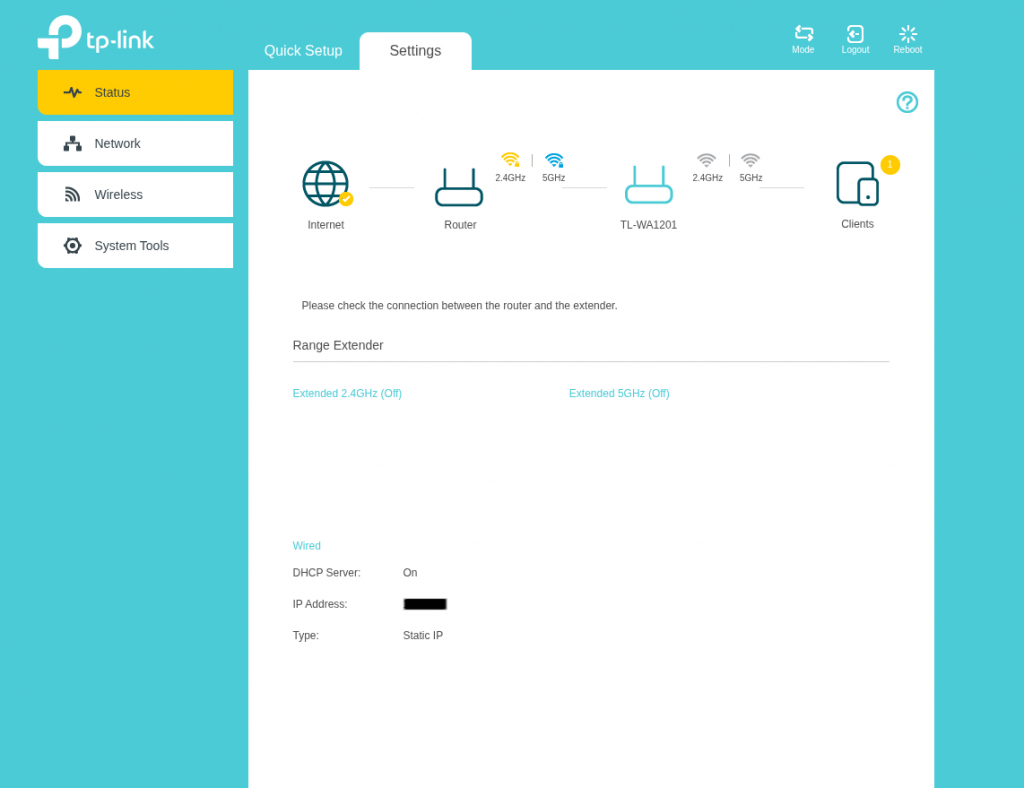
    So to pick up where we left off we’re going to go over one thing that I’ve observed with the current set up. Remember, we haven’t fully completed the installation of OPNSense, it needs to have some more settings configured. But I mentioned that in this set up our ‘gateway’ that we built is simply a Wifi extender. There is a DHCP setting that we can toggle and I was curious to see if it had any effect on performance. To be honest not a whole lot the only thing that I can mention is that with the setting off. The WAN DHCP client gets kicked back up to the gateway router upstairs.

    For my privacy and security reasons I’m not going to mention what my actual home lab IP address ranges are but I can say an example. If my Gateway (not my extender) the one provided from the ISP is at a default IP of 10.0.1.120, then I will make my extender with the same range, but it also has the ability to create it’s own LAN. So for these purposes I would put my default IP address at something like 10.0.1.121, it’s within the range of the established network without hopefully causing any conflicts.

    I define the IP range as something like 10.0.1.124 through 10.0.1.250 on my wifi extender. From there using the same settings we covered last week I set the primary DNS servers as 1.1.1.1 to use Cloudflare’s resolver and 9.9.9.9 to use Quad9’s resolver. So I just wanted to get that out of the way.

    Configuring OPNSense

    So in my opinion before starting this part of the build it might be a good idea to first off grab a copy of the current configuration that we’ve done so far. I have learned this the hard way over the iterations that I have done this type of project that there will always be something, like a small change some where that you ‘Save’ and ‘Apply’ and something happens that bricks your system or locks you out of the box that you’re working on. So it’s nice to get into the habit that if we make a change somewhere to back up our configuration before we start building. Head over to this section below and save your current configuration:
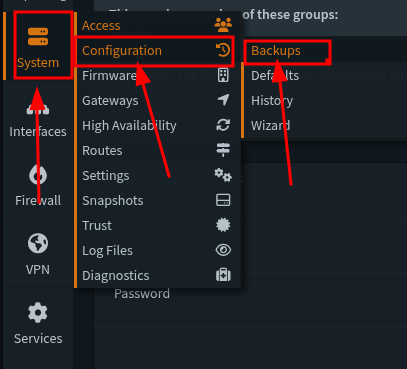
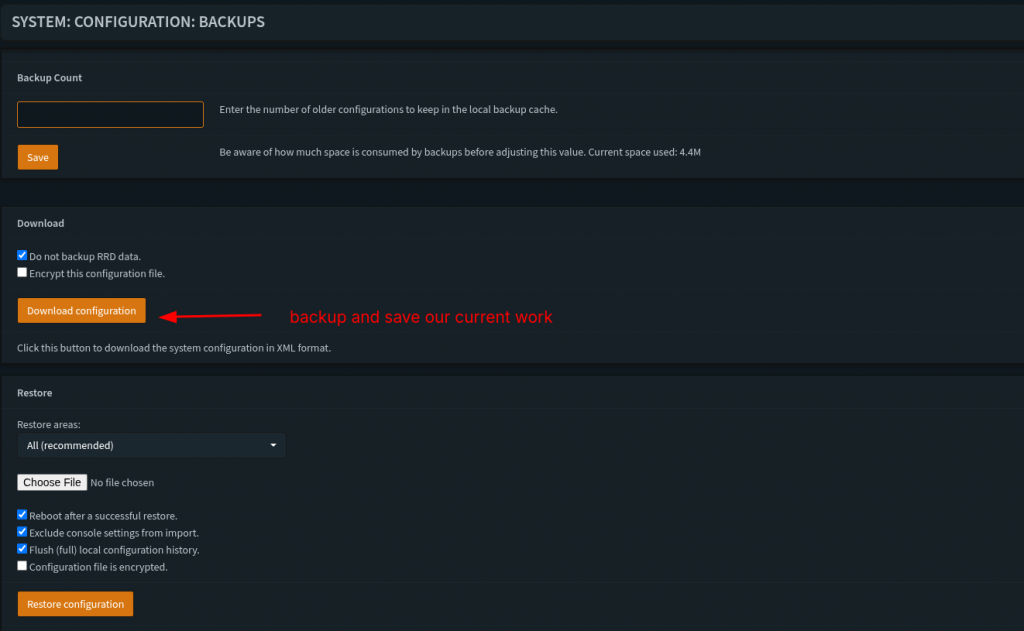
    In this fist step I’m going to veer off a little bit from The Network Guy’s walkthrough and instead do our general configuration from the Wizard. So below are the choices that I decided to do:
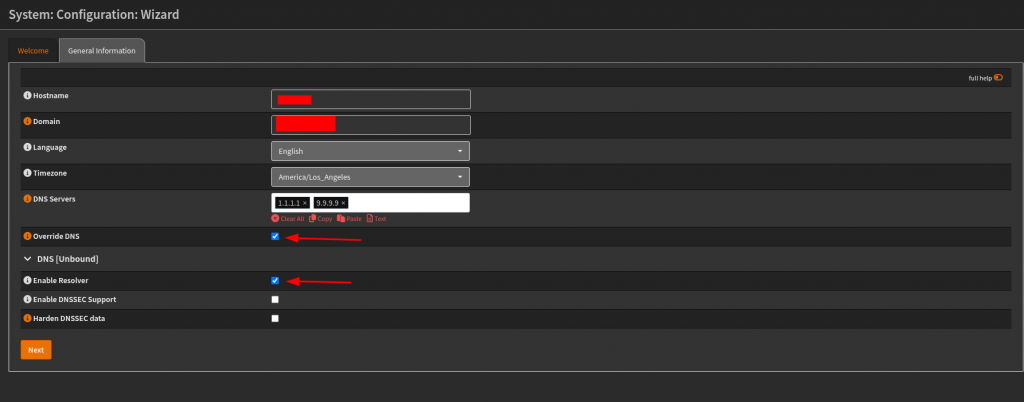
    For the first step I put in my hostname that I want to go by, define time zone and default languages. For the DNS servers I set them to the choices that I made earlier from the previous section. On this step I later changed the setting in Unbound DNS > General settings to allow DNSSEC support. That’s not showing in this picture.
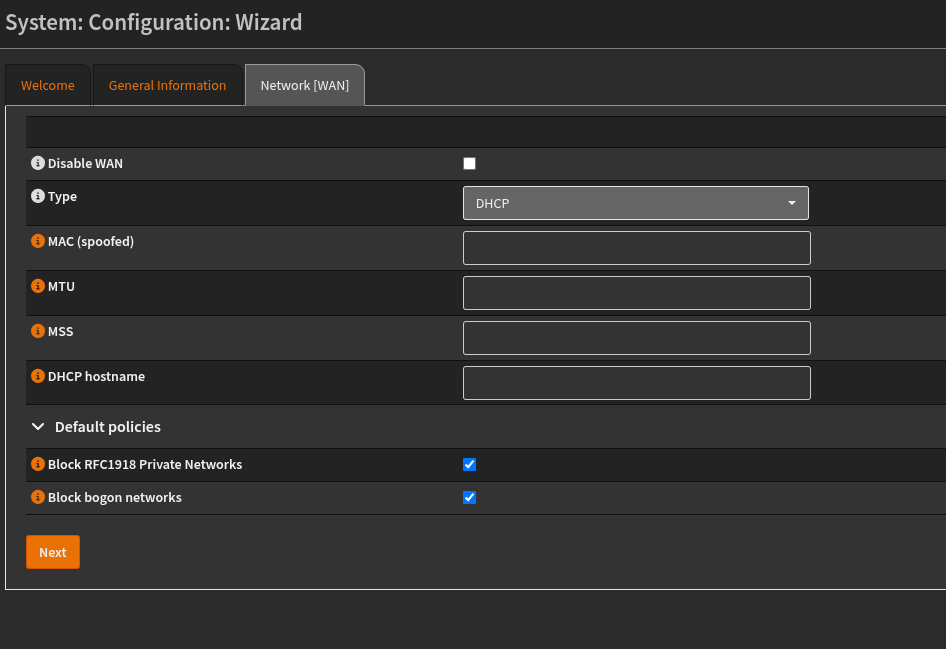
    For this step, I left the selections as is, so not really a lot to mention on this one. For below:
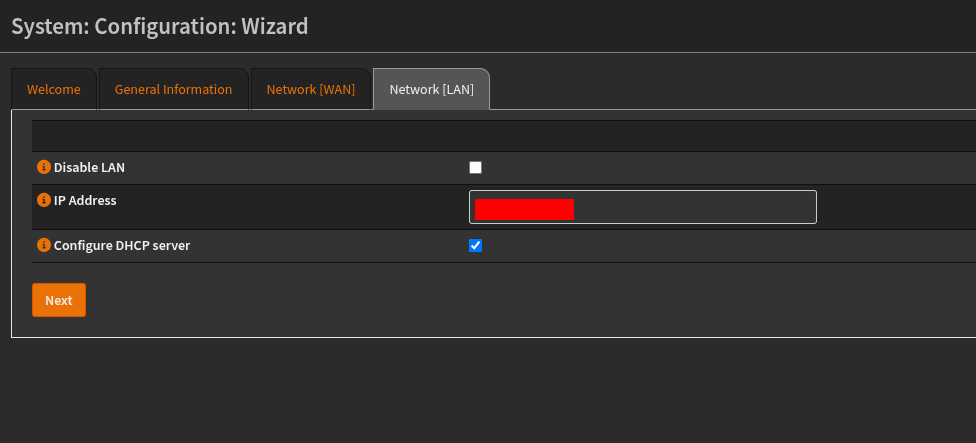
    On this step, we are configuring the settings for the IP address on the LAN, here you can set it as you want, and in this case we’re going to make sure that DHCP is up and running. If you are keeping the default settings, then not really a lot should be changed.
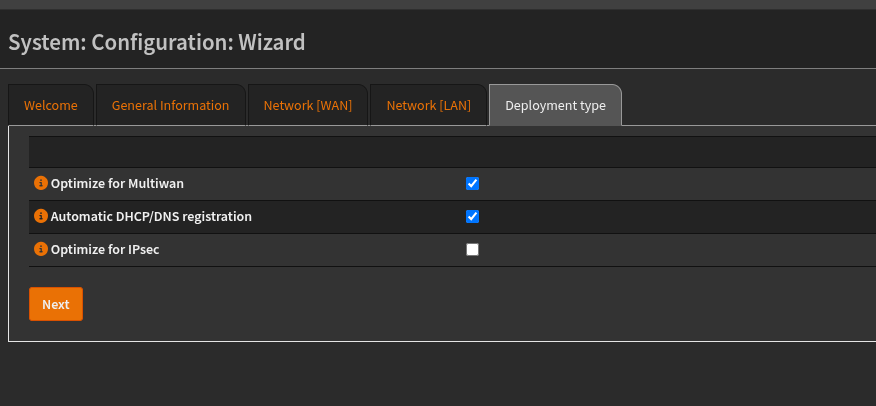
    I think these settings were selected for me so I didn’t change anything here. I need to make sure that DHCP/DNS registration is automated. So when we add clients it will automatically receive IP addresses and add the selection to the DNS agents that are running. I think with this step I’m eventually going to move away from DHCPmasq and over the Kea. Since the OPNsense release 26.1 they stopped support for ISC DHCP so I will need to fine tune the DHCP leases and range to the set that I want. I have the VLAN zones that I want to make but it’ll have to be configured more.
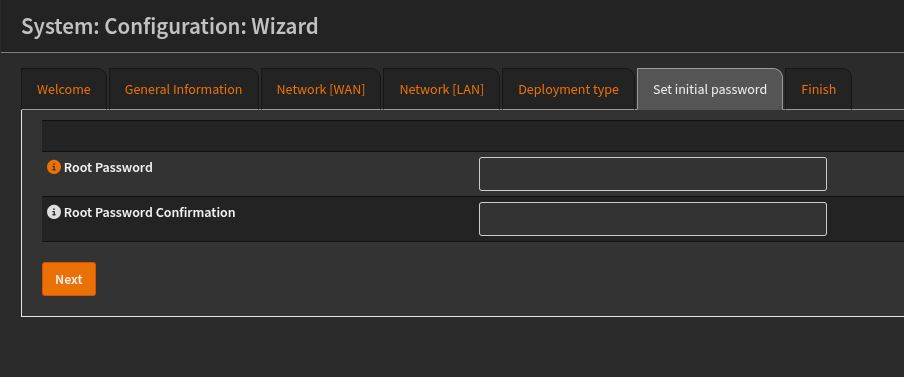
    Last step is to confirm the root password. Which should be pretty simple enough.

    Setting up another user and TOTP:

    So my approach to this network build is to have two users, one is an admin that can implement the router changes through the UI. And the other is a standard
    user who has SSH capabilities to do the same thing.
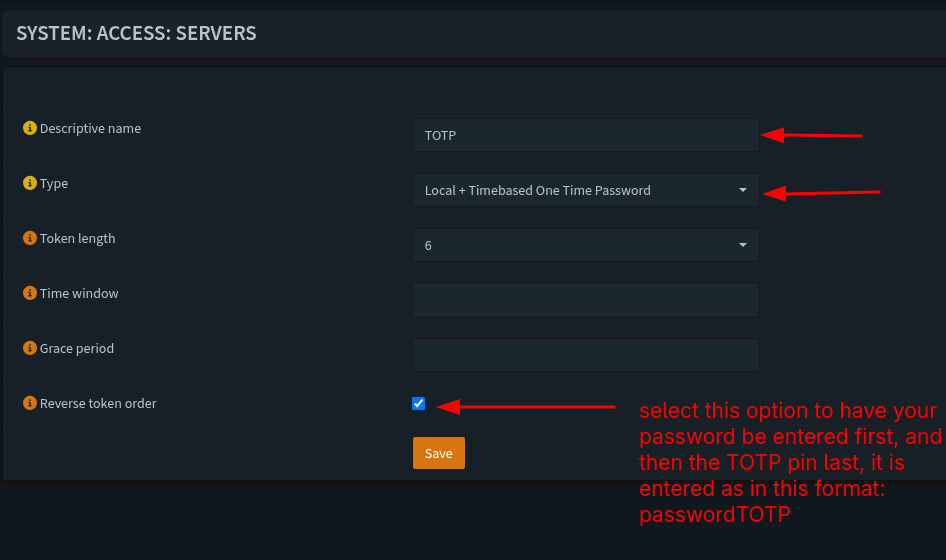
    Before we do a new user we need to setup a server that allows us to do MFA, in this example we’re going to be using a TOTP or a Time Based One Time Password. To do that head over to this section:
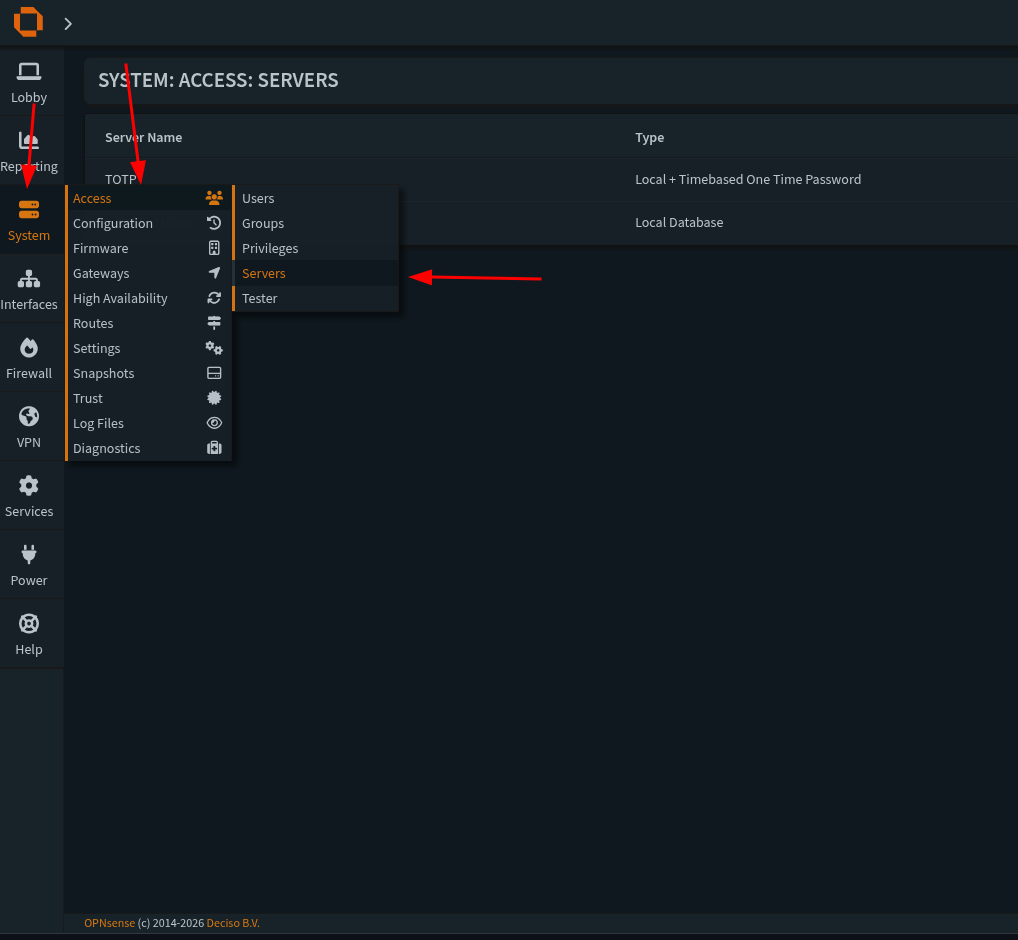
    Then we need to go to this section:

    When we create a new server we’ll need to select a name to call it (we can call it whatever we want). The type needs to be both Local + Timebased Password. Token length should be 6 and I like to have it be reversed because it’ll have us enter our password and login information first and then the TOTP after on the same line as the password. I’ll show an upcoming screenshot with this process. After that we save our settings and we’ll have our server setup correctly. Now we’re ready to create a new user.

    So we’re going to setup a new user in this case to had admin access through the UI, navigate over to this section:
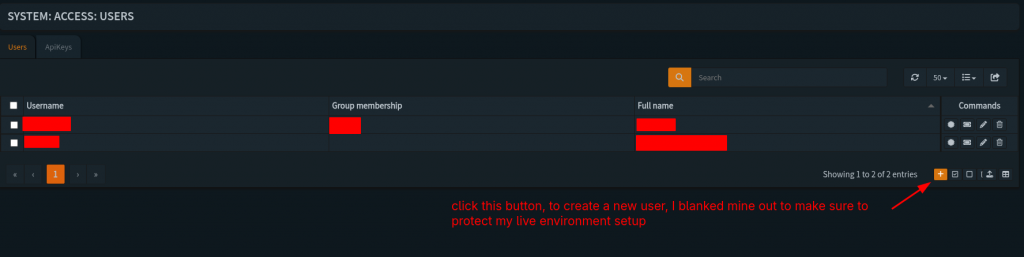
    But instead of selecting servers we’re going to select users. Under that section when we’re there we need to hit the plus icon at this location:
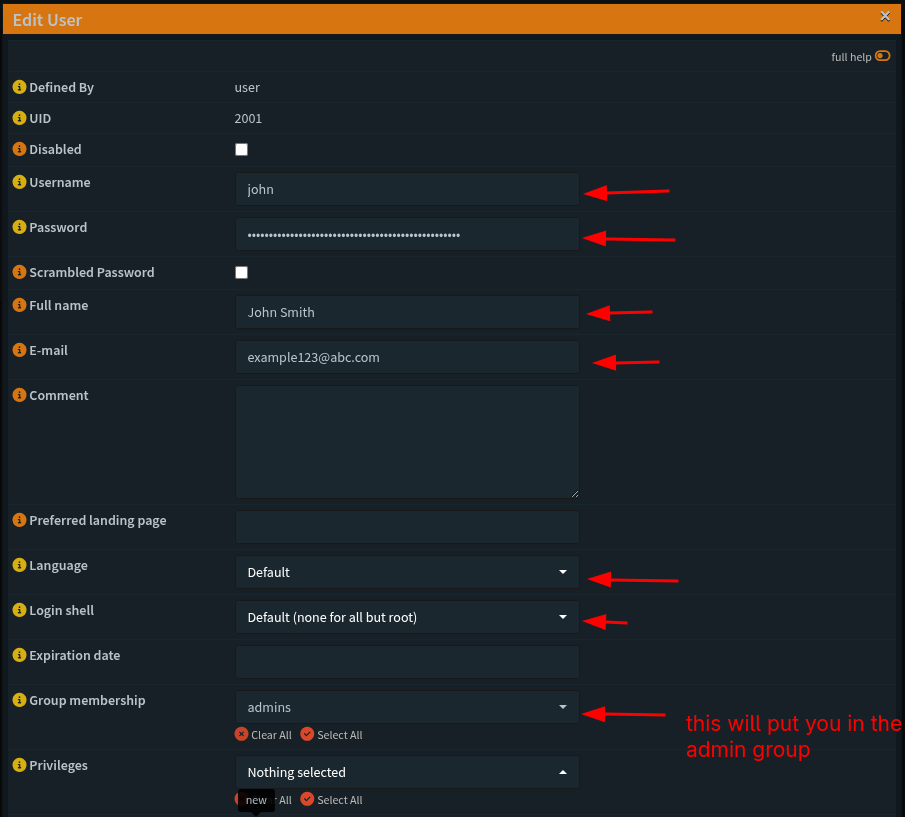
    Fill out the information below from top to bottom
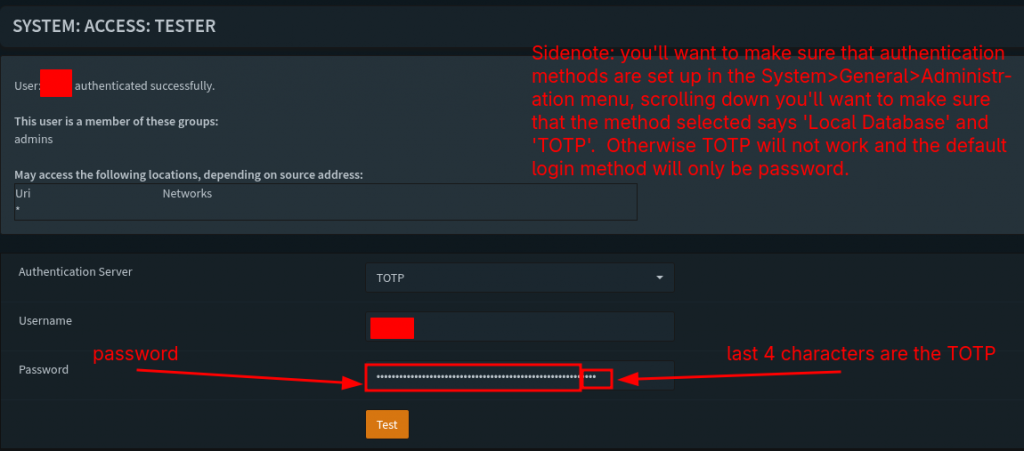
    With these settings locked in we should be good to test our user info for the TOTP and password, head over to this section and enter the following information:
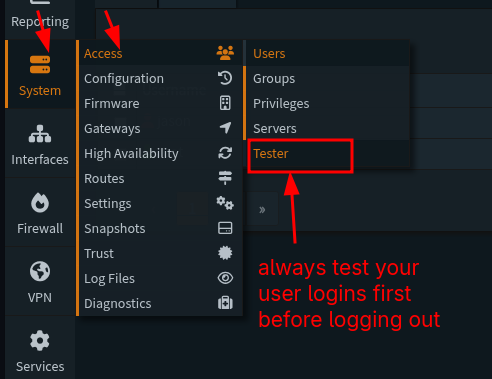
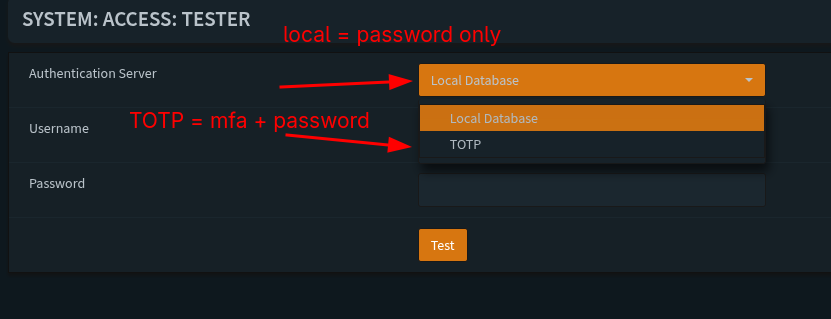
    We should have this message if all of the test login information was successful:
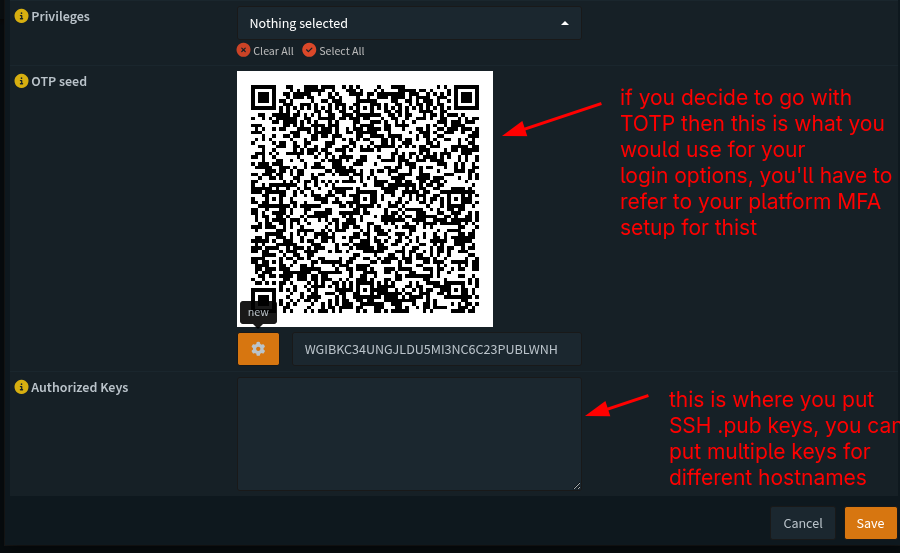
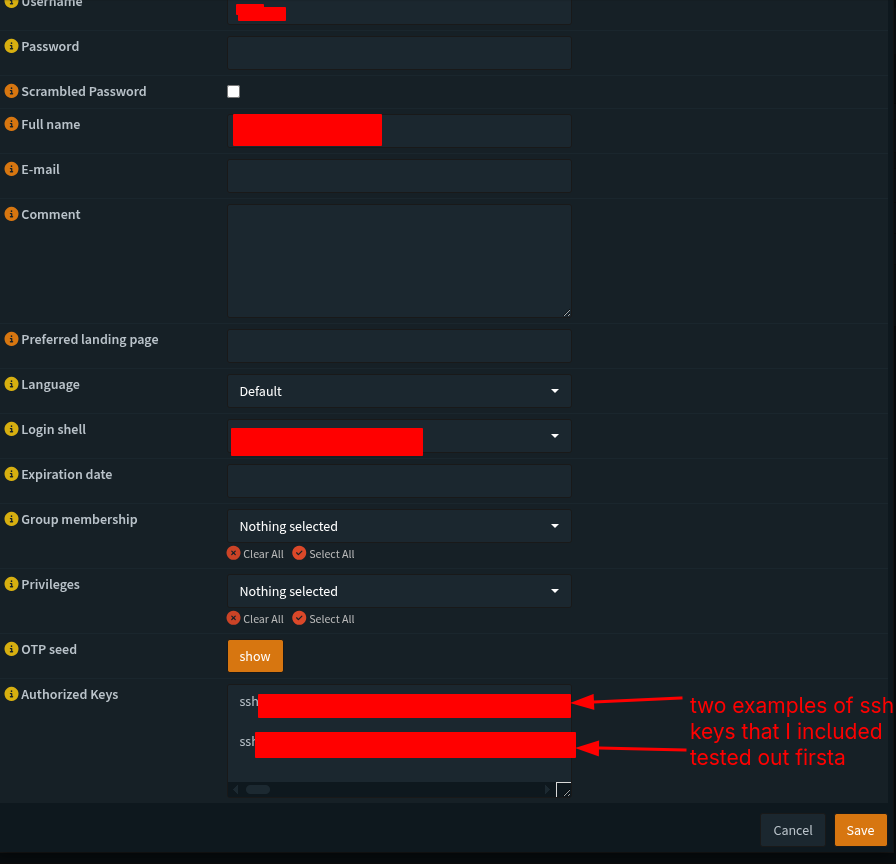
    Side note when we head back to our user info we created we can add SSH public keys to these profiles, and we can add multiple keys for different machiens we want to use.
    We should be good to save the settings and logout to test the login info we set up.

    System Settings:

    So for our next set up we’re going to refer back to The Network Guy’s writeup and navigate over to the following sections:
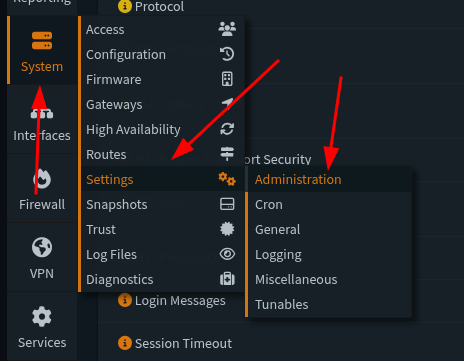
    From there, we are going to select the following sections:
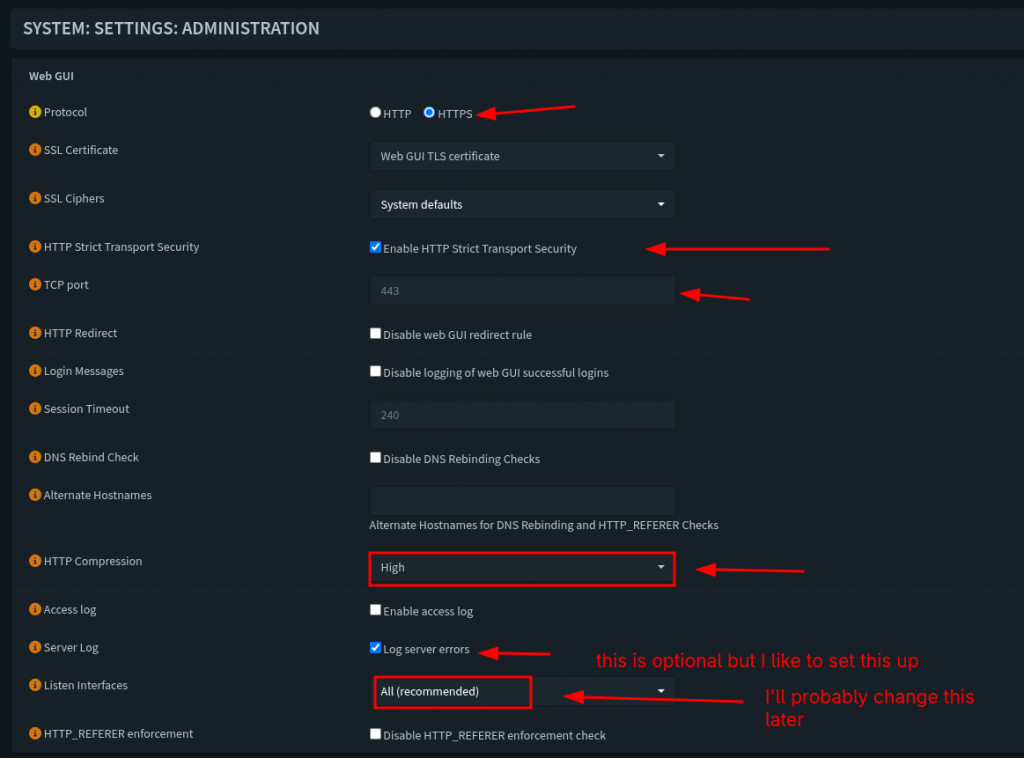
    For this section these are the settings that I personally selected. We want to enforce strict HTTPS protocol for our servers and traffic connection. The next one we’ll do is select the option to enforce transport of this protocol for traffic. TCP port is 443 for now, I don’t think this setting will change as I update this server and box. We’re going to check and enable that the router listens on ‘All Interfaces’, we’re also going to keep the default SSH port to port 22. We will the ‘Listen Interfaces’ feature later as we we setup some VLANs and segment our network for Wifi and a Management layer.
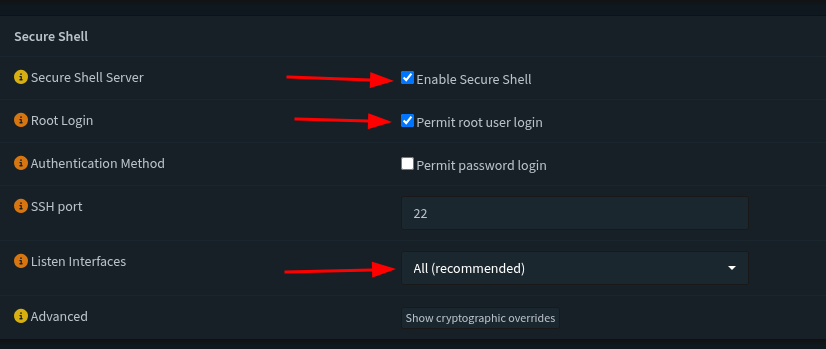
    This section we’re going to enable secure shell, and also permit root login. The interfaces we’ll listen to are all, this last setting might change as we add more fine tuned options and features to the network. We’re going to check and enable that the router listens on ‘All Interfaces’, we’re also going to keep the default SSH port to port 22.
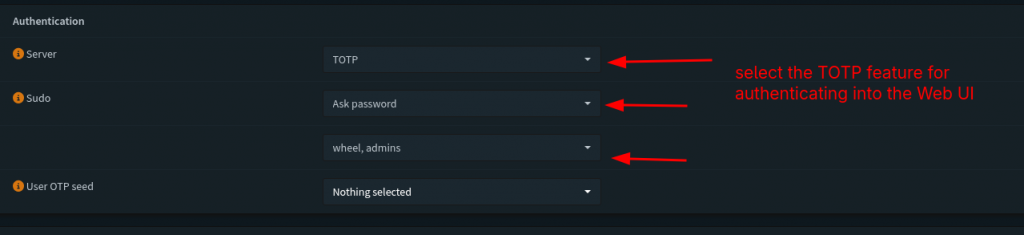
    This section defines the behavior we’ll do for authenticatiing our login information for our users. By default for the authentication server it selects is ‘local database’. But since we selected and built the TOTP server and tested the login info we’ll select TOTP as the server to use. For sudo users we’ll always ask for a password, and we want to make sure the user we’re configuring this for is a part of the admin group.

    Last step for miscellaneous settings

    Last step we’re going to do is head over to the miscellaneous section in the Settings:
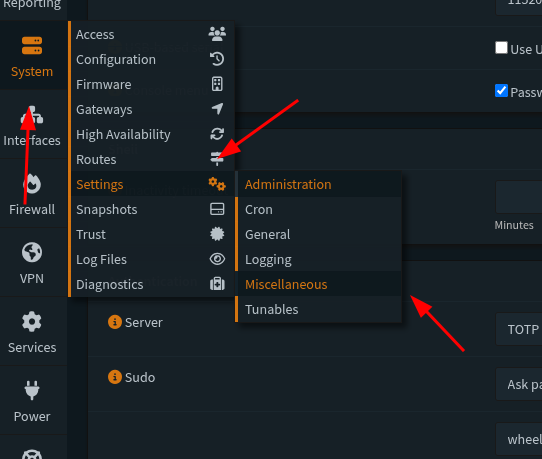
    We’re going to adjust and enable the following:
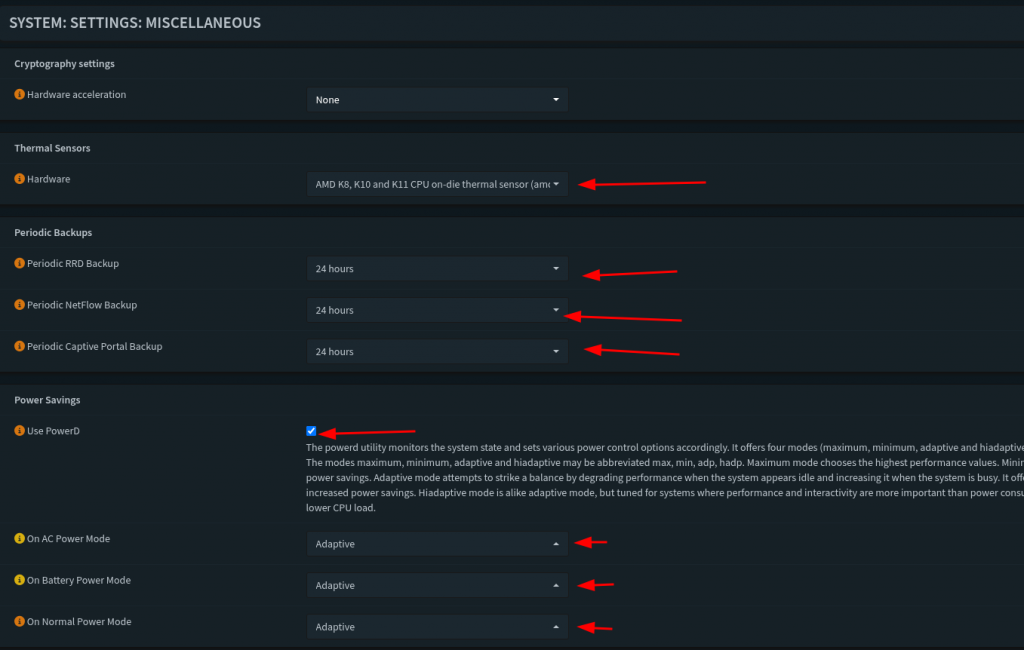
    So for this last section we’re going to skip Hardware accaleration. I want to make sure I can monitor my CPU temperature, this PC is a little older than normal so I’m not too worried about temperature loads exceeding safe levels. I want to enable RDP, Netflow, and Captive Portal backups just for monitoring my traffic. Next I sec all my power options to adaptive, I don’t want it to eat up so much power, but still allow me to have some responsiveness when using the box.
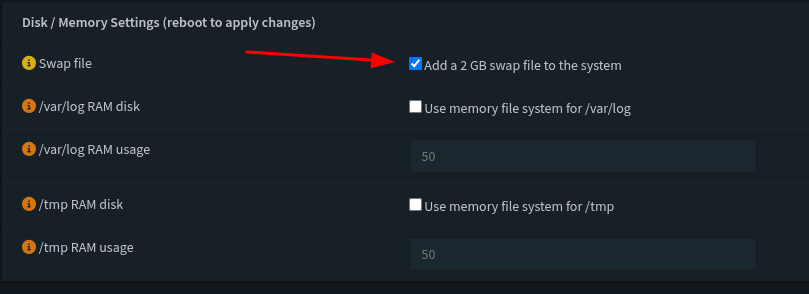
    The last section I changed and saved was to increase the swap file for the disk memory allocation. I have the space for it on this machine so it shouldn’t be a problem. And with that we’re done with the basic configuration of this router. Next I’m going to be going off of The Network Guy’s complete walk-through and we’re going to dive into VLANs and Firewall rules. If I can keep this next section relatively brief I’ll see about getting the WiFi AP up and running. The Network Guy’s walk-through’s are way more detailed than mine but we also set up a really good management network that I want to enable on this home network to make sure that I have the means to have a separate network. And he also did a walk through of making networks separate. So we’re by no means done… anyway my pilgrims, we’ll end this week’s article on this note. Until next time, keep building and exploring.

    References:

    https://homenetworkguy.com/how-to/beginners-guide-to-set-up-home-network-using-opnsense/

  • Home-Lab: Part 2

    Good afternoon my tech pilgrims it’s great to be here again with you again for another article in the series. We’re going to focus on building the OPNSense router and getting it installed. We’re going to recap a little bit since last week and go over the parts that we have available and document how they’re going to be used.

    Recap

    Last week we talked about the process of setting up our gateway in our network map that we set out for ourselves. We were able to get some core crucial components set up for it, this in essence is a wifi extender but it’s critical role that it will serve is as our gateway. I set this up with the relevant information of our home network that we share with the rest of the house. It extends coverage in our area that we live, now this would be fine for everyday use my determination is to make it something that can service external services that I can access anywhere in the world. There are many more plans I have for this network but for now we’re going to focus on configuring the router which lies at the heart of our set up.

    Step 1 – Cabling

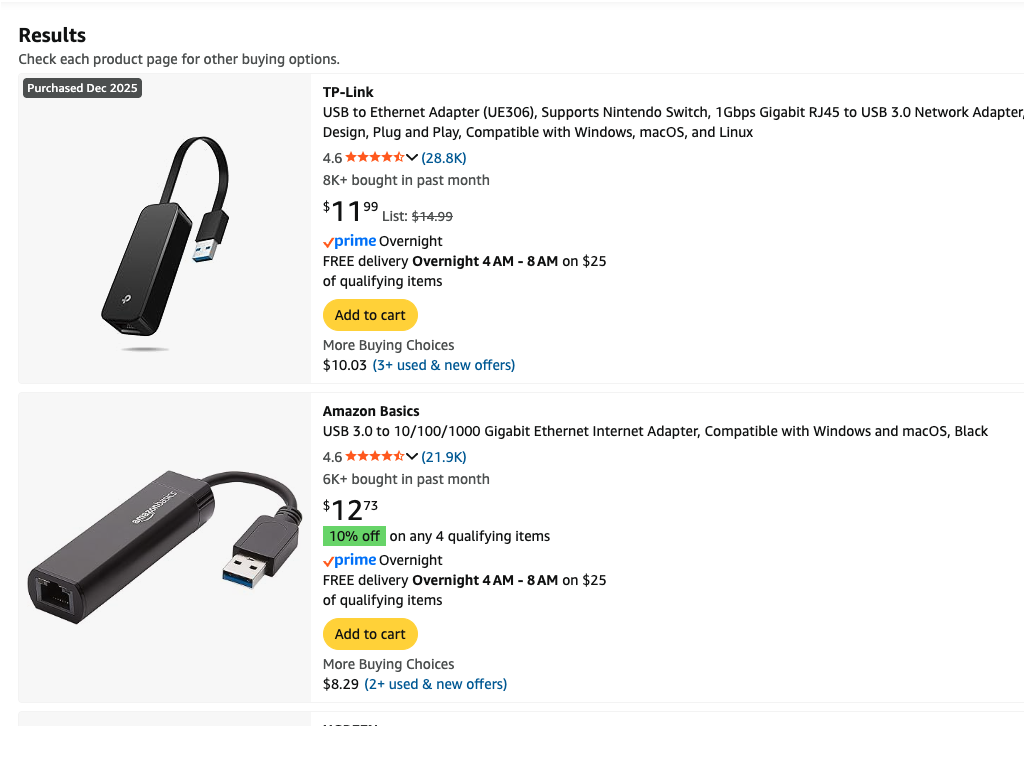
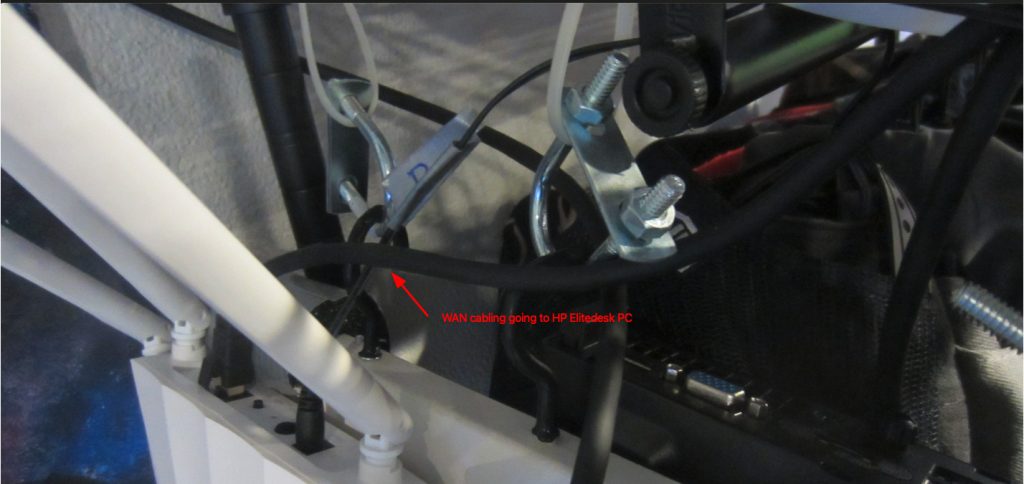
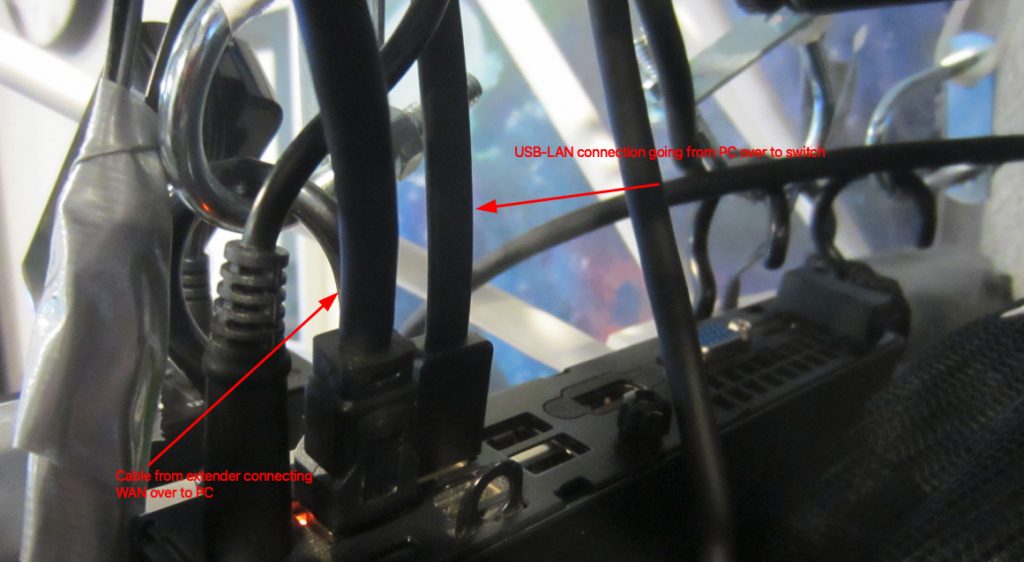
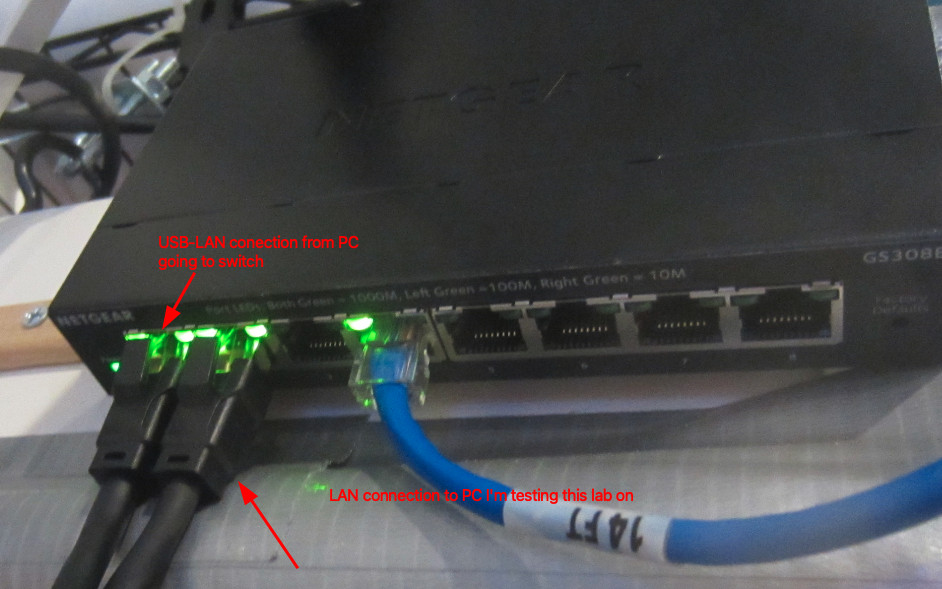
    Configure all of the cables to plug into the gateway and the router, remember you want a direct WAN to LAN connection from the gateway device (Wifi Extender) to the router device that you are using. Next you need to somehow get another RJ45 connector to connect to your managed switch from your router. For me I am using something like a TP-Link UE306 USB to Ethernet adapter or a basic Gigabit Ethernet Adapter from Amazon. Both look like something like this below, me personally I went with a TP-Link gigabit ethernet adapter and plugged it into a usb port on the back of my HP Elitedesk small form PC.

    usb to ethernet adapters

    From there I connect a small gigabit ethernet patch cable to the smart switch, hypothetically this should take care of the simple hardware and cable management that we need to arrange.

    Step 2 – Hardware configuration

    Now we need to prep our router to install the image of OPNsense, you can find the download iso here at there website, https://opnsense.org/download/ . A note about choosing which iso file to download, I played a lot between using pfsense and OPNsense. Fundamentally they are running the same system under the hood, and that’s FreeBSD. Although I did try and install pfsense on this particular PC I set aside for this lab I kept getting kernel panic errors when trying to run the demo iso file. I don’t know if this was as a result of driver firmware failing to install, or some other issue happening in the boot process. I did also mod the PC in a slight way, I found in other iterations of this router demo and build process that DHCP resolution was being funneled through my wifi interface. Another take on the pfsense decision is the upcoming hardware modification that I did might’ve cleared up this kernel panic message I was seeing. I decided not to go into Without getting too ahead of myself an interface is something you define in OPNsense as to what you’re going to be using for internet traffic, I could be wrong about this but it helps set up the proper routes you want traffic to go in and out of.

    What I did find when I rebuilt this router several times is that almost always traffic was being routed through my ilfwifi interface. This can be found out when you run an ifconfig command through the terminal on OPNSense it will display the interfaces it detects and you can decide and define what interfaces you want to route from your WAN gateway to the LAN you’re building right now. Now USB to Ethernet adapters are pretty good so far with being detected and used as interfaces for you’re respective routes you want to build and connect.

    So to remedy this I wanted to make sure that the Wifi NIC wasn’t being used at all, so what I decided to do was to identify the Wifi NIC and remove it from the mother board. This is a relatively easy process to do, I recommend if you’re following along with this walk through to make sure that you look up and follow the tech specs that are provided from the PC maker you are using to install OPNsense to. After the Wifi NIC is removed I duct tape the data cable leads individually and make sure that I label them with the proper connections that they came off of from the NIC. This does one of two things, the tape isolates and shorts from taking place with the cable leads, which helps to minimize any hardware errors from taking place. The other is once the cable leads are connected, it’ll help your future self to make sure you know which leads go where should you need to reattach the cable leads to the NIC again. When this is done you can put the PC back together. Now you should note that there are most likely a lot easier ways of doing this but this was something that I wanted to almost guarantee would divert traffic to my USB – Ethernet connection. Also this step is not mandatory data traffic will go through USB – Ethernet connection since the light to the connection was flashing before I did this small hardware modification.

    Step 3 – Image the ISO file to a USB

    Now we are ready to install OPNsense, navigate to the website I linked, and select the vga option to download the file to image to a USB. Using your favorite imaging software a list of some are provided :

    Now we image the file to a usb, and now you are ready to install OPNsense.

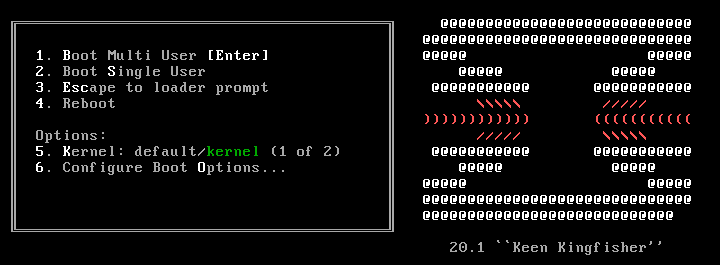
    I recommend connecting an external keyboard, mouse and monitor to help with making sure that the installation goes according to how you need it. Boot up your system and enter the BIOS menu, choose your boot menu and select the USB option that matches the one you imaged before. You should start seeing a boot up screen that looks somewhat similar to this one below:

    Before we install the image we are going to go ahead and assign the interfaces to the respective connections. One way to do this (again there are definitely easier options and methods), would be to wait for the

    manual interface assignment: 

    to pop up, this is usually shows up in the boot up process and it’s usually the second pause, it shows up with a 5 sec countdown. This allows you to have the option of selecting any type of key. I borrowed this screen shot from the HomeNetworkGuys channel and his video OPNsense Full Network Build (2025 Edition)

    Step 4 – Assign interfaces

    This is the next steps you would do to assign the interfaces that automatically get detected, however in this case you would need to know what interface is which, in this case for the Home Network Guy’s example his interfaces show up as follows:

    interface assignment option

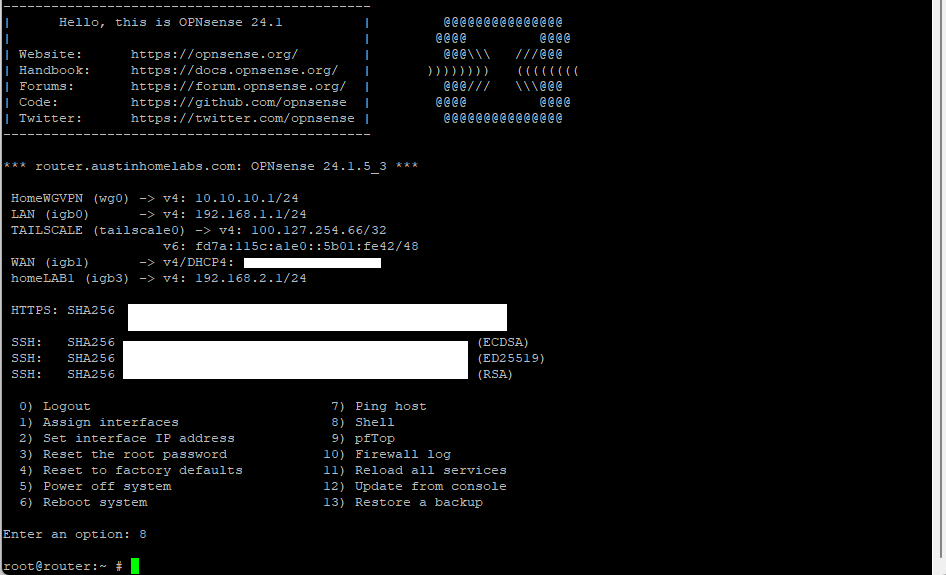
    In our example we’re going to wait to till the boot up process finishes and then we’re going to login with the password and username root, and opnsense. Once we login we’re going to hit option 8 for shell, and then type in ifconfig (this is installed by default). This will show all of the interfaces that are plugged into the device. We now need to plug in and out each of the ethernet connections, and re-run the command again. By plugging in and out each ethernet connection will show which one is which. When you determine what connection is which keep track of which one is for the WAN and the other for the LAN. In this case for my device my interfaces are bge0 for the LAN and the interface ue0 for the WAN.

    install boot screen for OPNsense

    This might be a clunkier version of finding out the interfaces, and believe me there are definitely easier ways. But unless you found which interface is which you’ll know for sure what interface will follow our network topology and plan. To exit the shell prompt we can type exit and we’ll be taken back to the main menu, once there we can select option 1 to Assign Interfaces

    11 interface assignment for opnsense

    We’ll be prompted with an option if we want to configure VLANs and LAGGs for now we’re going to say no to both of them.

    The system will show us which interfaces it detects, now that we know which one is which under the prompt to select the WAN we’ll enter ue0 for our choice. The system will then ask you to configure the LAN, it’s very easy to skip this part (at least it was for me) so when we get to this step enter bge0 for our LAN and after that part we’ll be done. We’ll be asked if we want to configure an optional interface, but we can hit enter and it’ll ask us if we want to confirm our answer. We’re going to hit y for yes, and it’ll confirm our selection.

    The login screen will pop up again and our LAN and WAN interfaces will be set and configured, we’ll see a default LAN IP address of 192.168.1.1 and for now we’ll leave that set to default. Remember at this point we haven’t installed the system yet we’re still in the live environment. We’re going to do one last check, on the main menu we need to select option 7. We’re going to perform two tests to make sure DNS and DHCP are connected properly. We can select either one, this is the equivalent of doing a ping test in a terminal. Same idea and concept, so for my purposes I’m going to ping the IP address of the Google name server at 8.8.8.8 . If you come back with no error messages and that the ping tests were successful we know that DHCP is working. The last thing we can do is the same type of test again but to test that DNS is working, type in google.com as the result to test. And same thing if no errors occur and all packets have been delivered then we’re good to continue with the install.

    Step 5 – Install Process

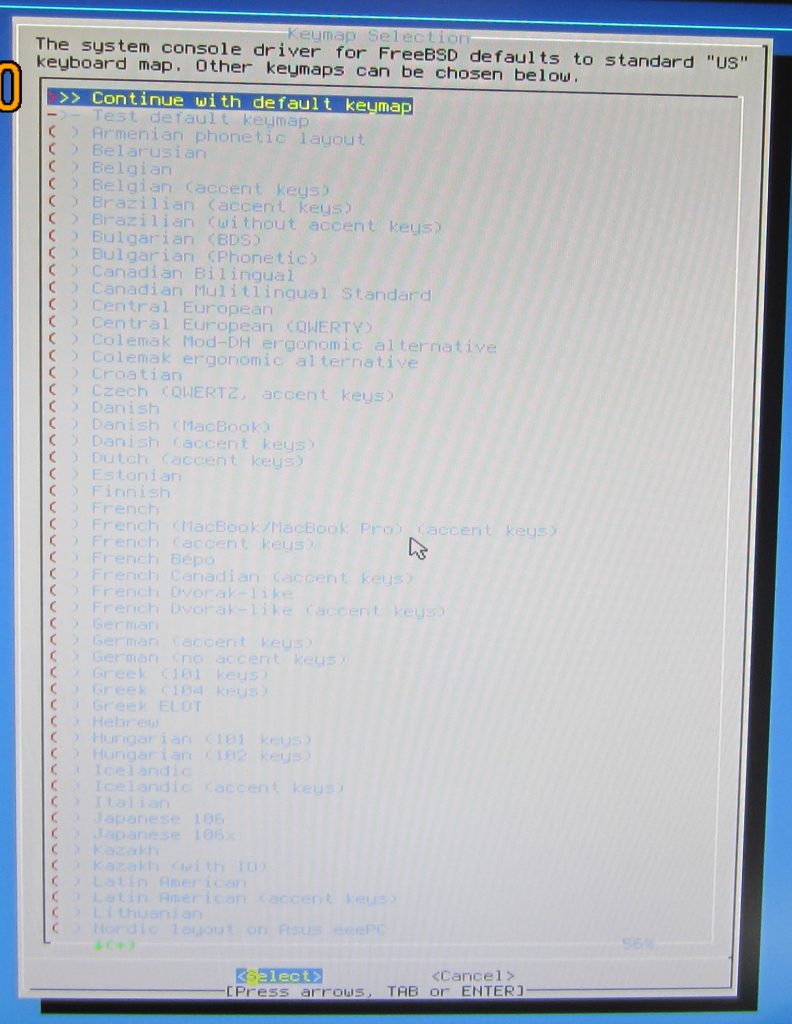
    Now we’re ready to install the system, in the option selection type installer and we’ll be prompted to this scene below:

    keyboard setup

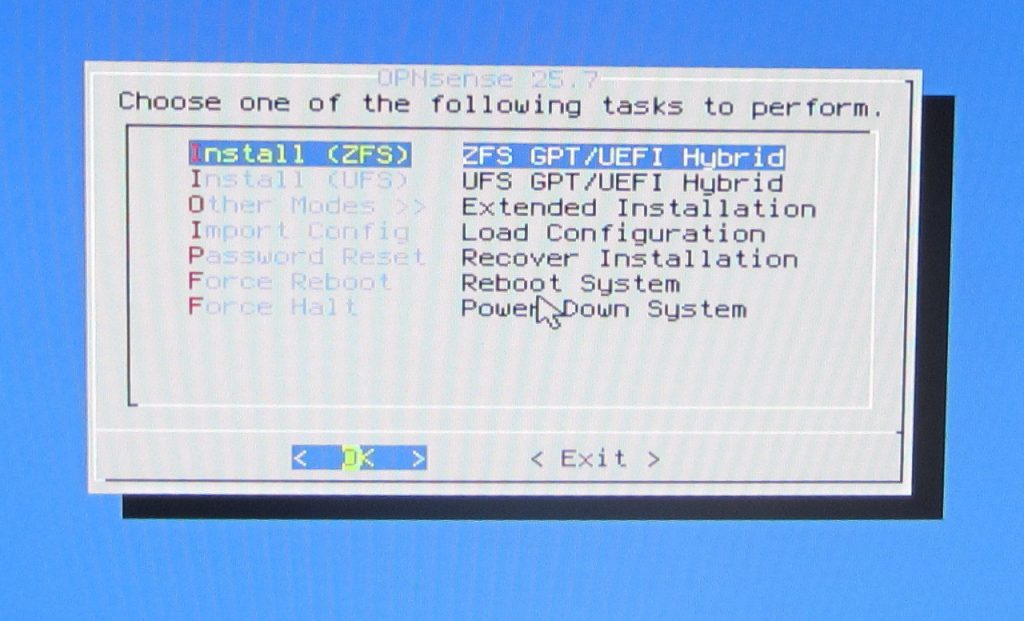
    Select you’re appropriate keyboard layout, then select the appropriate file system to install. OPNsense documentation recommends to select ZFS as the file system, it has better reliability and performance. So we’re going to select that option:

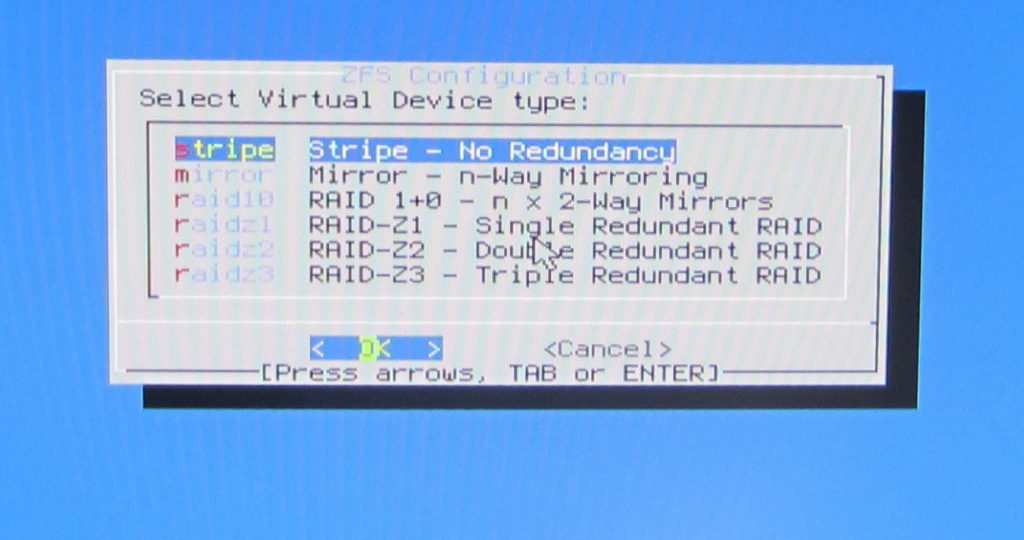
    We’re prompted to select a RAID hard drive configuration, for our purposes I don’t have several drives installed and am only using a single one. So we’re going to select Stripe for our setup:

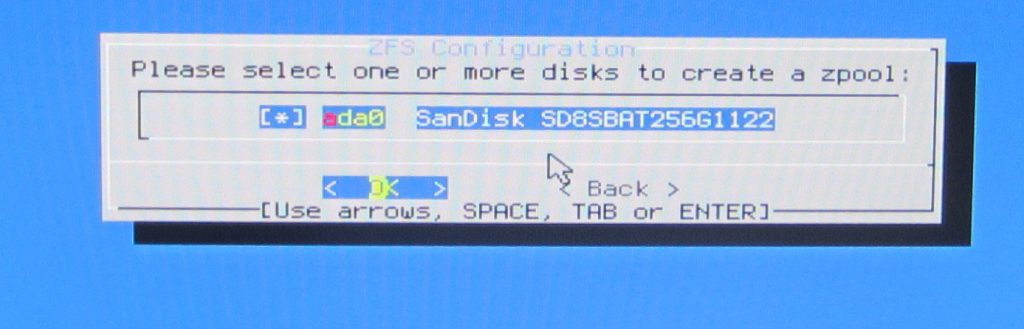
    It’ll pull up the available hard drives (or disk pools that it detects), so confirm the one we’re going to be using. One good side point that I gotta say BSD has going in it’s favor is that it distinguishes between drives installed and doesn’t include the USB drive we’re using.

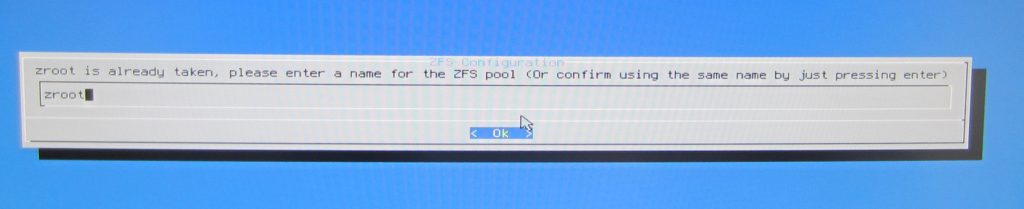
    It’ll confirm the drive name you want to name, I typically just let it auto name it as zroot and confirm the selection.

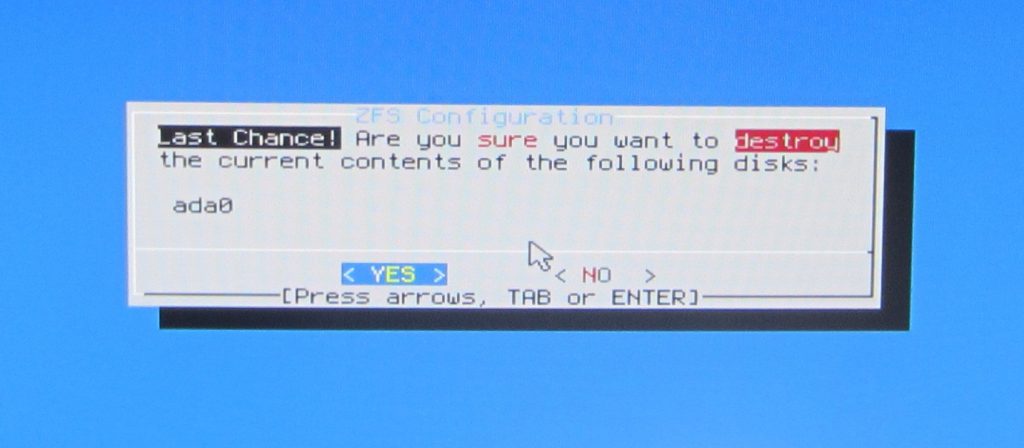
    Lastly it’ll ask you to confirm final changes, we confirm yes and let the installation proceed.

    Once installation finishes installing we’re going to select the option to change the root password or restart the system this will confirm the installation to take place but if we select the restart option we need to make sure to remove the USB installer media when it prompts us to. In my case I want to take advantage of the choice given to change the root password, and so follow the prompts to do that. Going to keep this part brief since this write up is already getting pretty long. The system should then reboot and we’re ready to use OPNsense.

    Conclusion and closing thoughts:

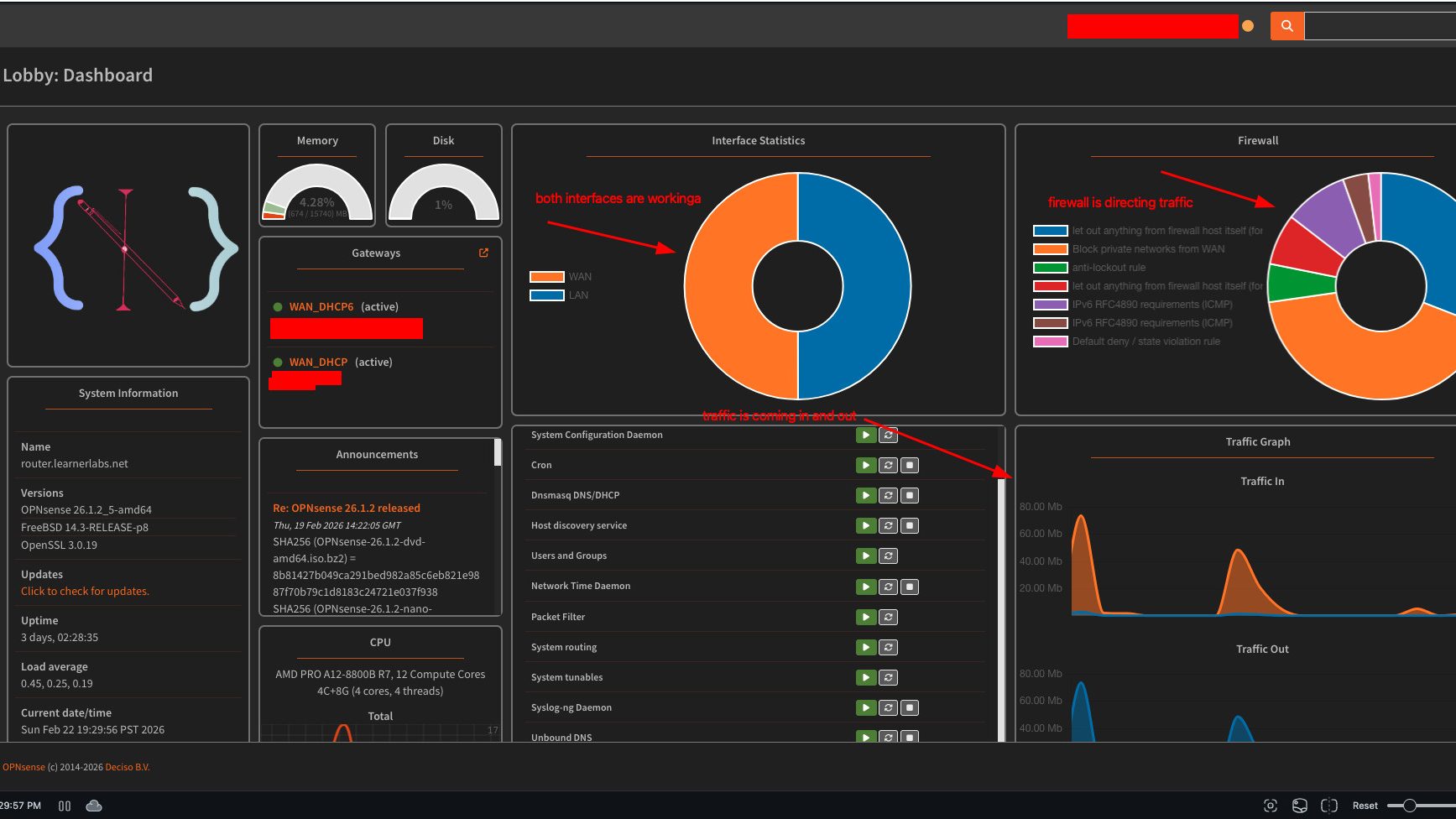
    So now we’ve finished installing OPNSense on our router, if all steps are followed in these write ups so far, our router should be directing input and output traffic through our extender. We can run an ifconfig on whatever computer we have connected to our switch. And if the IP range for the ethernet connection looks like this then we’re good to go.

    There likely is way more I skipped but that is the general instruction for getting OPNsense installed. We can no configure our IP addresses for each interface, and configure other settings. But we’re going to work on that next weekend, the only real challenge with this install is marking and knowing which connection we’re using for the WAN and LAN interface. But I can confirm at least that there’s traffic coming and going and we will leave this weekends walkthrough there for now. Have fun this weekend building and experimenting, until next time my tech pilgrims.

  • Home-Lab: Part 1

    Good evening my fellow tech pilgrims, it’s good to be here with everyone and I wanted to start by apologizing for missing last week’s session. Here in Seattle we had the Superbowl and a good portion of the town and city wasn’t going to miss this opportunity. So definitely need to apologize for missing my deadline. This also was a bigger project than I realized and I have to admit I have had to trim it down a lot in order to stay focused on the main objectives that I want to achieve. This post is heavily inspired by Patima Poochai’s article I cited last week.

    Objectives

    So I mentioned about the objectives here, and this is the direction I’ve been wanting to go for my home lab. Where we live, we have a shared router/gateway from our ISP provider that services the whole house. Thankfully it doesn’t have any strength deficiencies so, everyone is able to get the internet they need. But of course me being me I wanted to take this a step further and build a home lab. One of the most rewarding things you can do if you have extra PC parts lying around is to give them new purpose and let them live on in other ways as network devices.

    Where it stands this is probably my 5th or 6th iteration of this phase of the project so the more I repeat certain parts the better I get at remembering them. The purpose of this project is to build a fully functioning home-lab and to use it for testing out new tools and hosting services on it. But that’s just the general high preview of everything.

    The purpose of this article is to work on getting the first critical parts completed and running. That includes the following hardware:

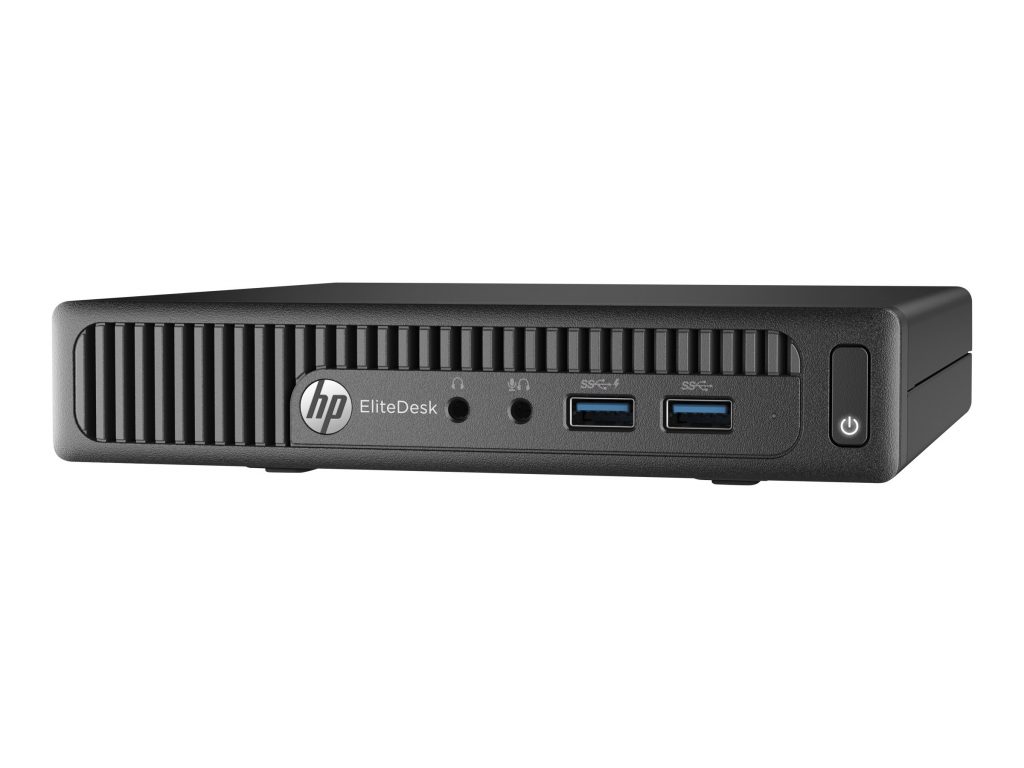
    • I am my router on an HP Elitedesk 705 G2 with an AMD A10 processor mini pc and 16 gb RAM, I threw in a 250 gb SSD which should be more than enough hard drive space.
    HP G2 Mini Elite Pro Desk used for my router
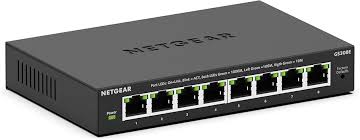
    • Using a NETGEAR 8-PORT GS308E managed switch
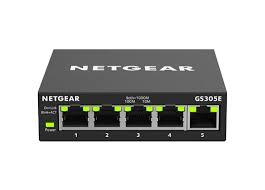
      – Same with a NETGEAR GS305 unman-aged switch for my different devices that I use, for day to day work or back up PC’s I have in case one is offline.
    managed switch Netgear
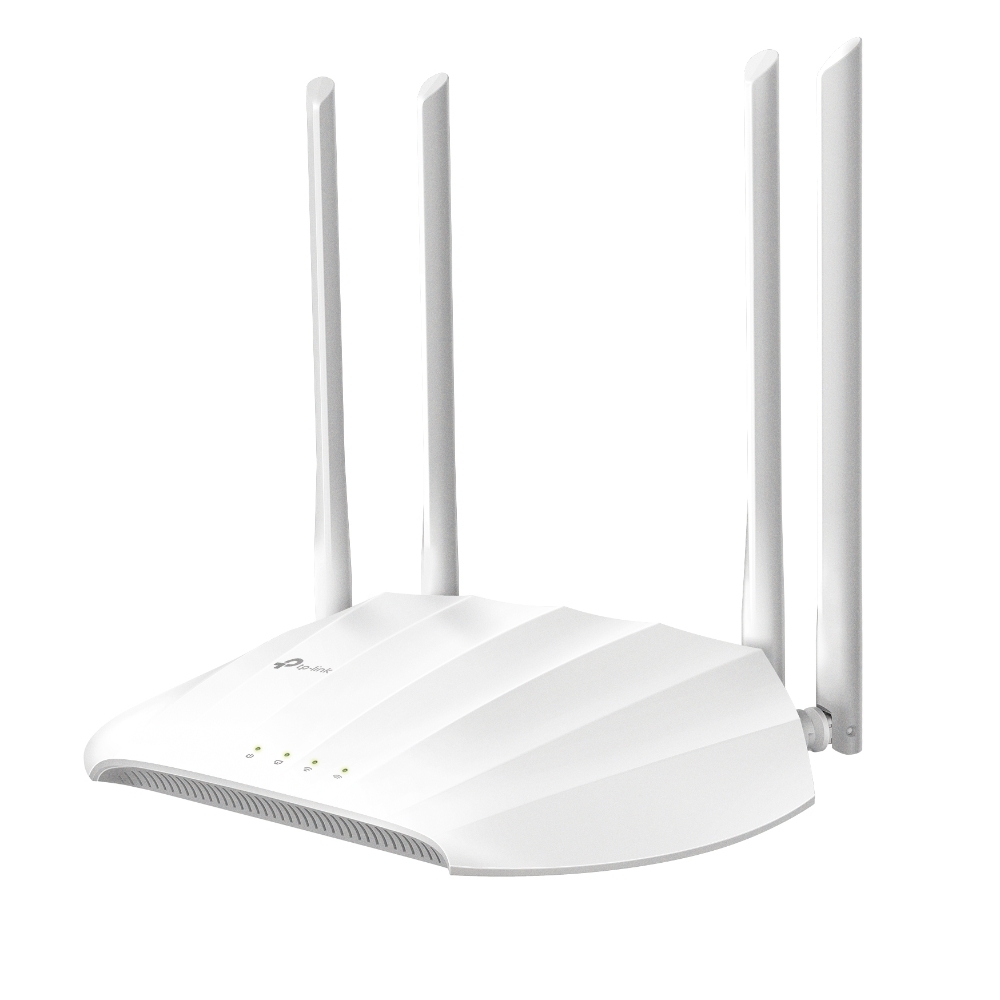
    • My WAN is a TP-Link AC1200 (TL-WA2201) Dual Band wireless access point, it is set to Wifi Extender mode

    Road-map for the future

    Since these are the first components that I’m building, my eventual plan is to have the following setup for my network. This network will be used by my partner and I for our day to day use, lab experimenting, and a cyber security research lab. Basing my study off of an article and write up of the Network Guy I’m going to split these networks up into separate VLANs so I can keep traffic separated from layers that either don’t need to be exposed to the internet or exposed in a configured and hardened way. This is something that I had in mind:

    VLANs
    – Guest Wifi
    – DMZ designed for public facing services
    – Management (managing network and network communication)
    – IoT – put this up later mostly need wifi dmz (public wifi) and managing internal network.

    Now that we’ve got that out of the way lets focus on the parts we need to configure.

    Extender

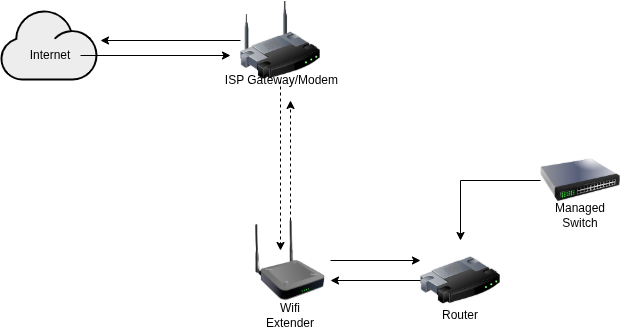
    So we’re looking to aim for a network diagram like this below

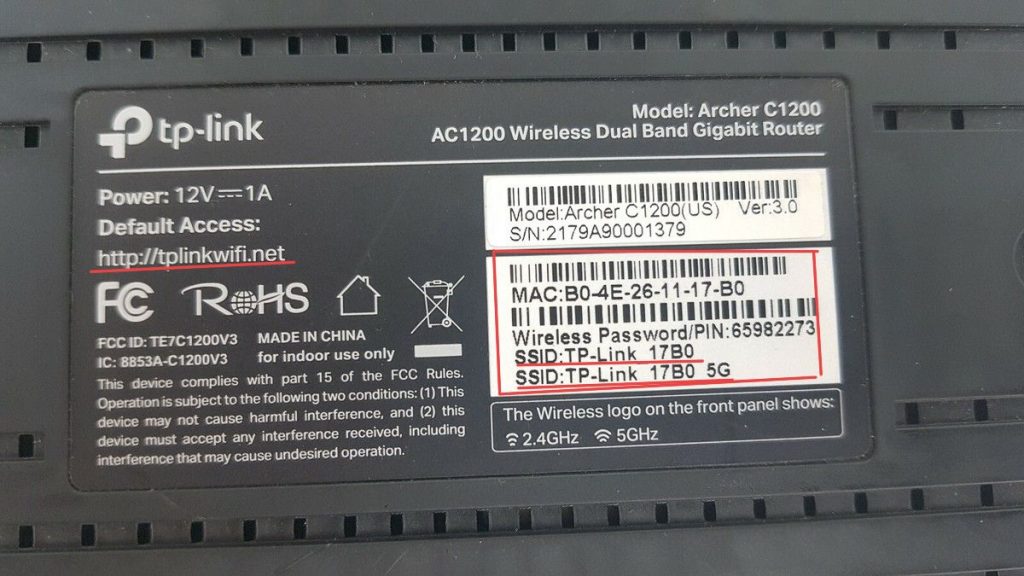
    We need to configure the extender, the first step involves getting it powered on with the supplied power source. We need to run a patch cable and connect one end to a computer that we want to work with and the other end to the extender. Next we need to make sure that in our network settings we are connected to the extender it will have a hostname (also known as the SSID) usually in this type of format, since we’re plugged in through Ethernet that connection 9/10 times is automatically managed for us.

    This above photo helps provide the example that we are looking for, we want to connect to the IP address that it is either attached to or we can try typing the URL that is also highlighted. This should take us to the admin portal that we want, from there we need to setup our extender so that way it is connected to our existing Wifi network for the main home.

    I should suggest that at this point, much of the rest of the configuration will depend largely on your own personal needs and preferences. For my device in particular it has an automatic setup feature which allows you to enter the needed information for your existing network.

    Once that’s setup, Patima’s article suggests to test your internet connection and to make sure that it is connected both ways to the internet. One feature that my device has is that it shows you a status graphic of whether things are working and functioning properly. Another good tip I recommend is to pull up a terminal and run ifconfig and it should show you what your network devices and the ip address is. Lastly, check that the network traffic is going from source to destination, run a terminal command ping 1.1.1.1 and then also run ping google.com this helps to confirm whether DHCP and DNS is working.

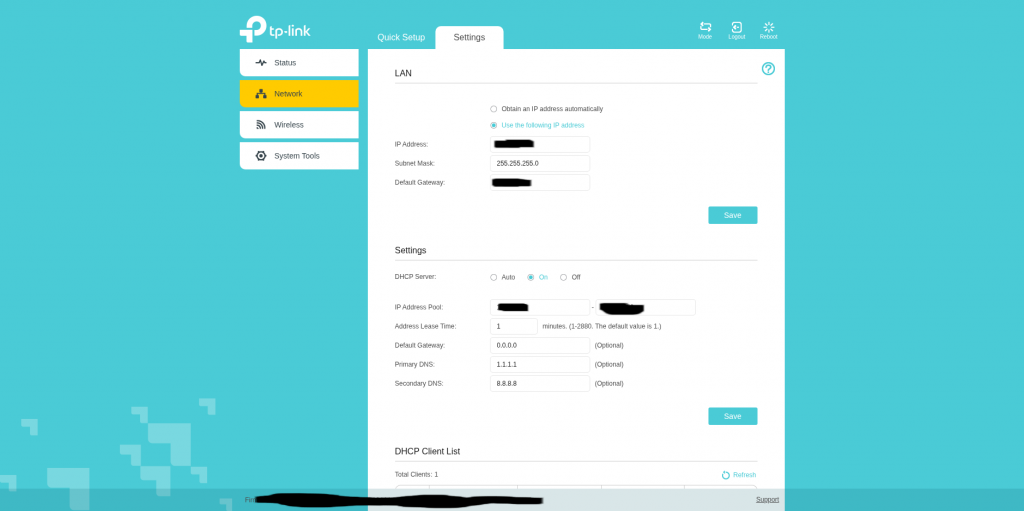
    From that point we are ready to configure our network settings, I should say that it’s at this point where things kind of threw me off with configuring of the router so it’s very important that we make sure this part is configured properly. We can to set the LAN settings to the following:
    – IP address: this is the device address, in a way it’s acting like our gateway.
    – Subnet mask: this divides our larger network into smaller more efficient sub-networks
    – Default gateway: is the address we put for our router gateway we are tapping into

    Settings:

    DHCP server allows us to hand out IP addresses to all of our clients/devices that are connected. To be honest I’m still investingating this feature some more, I have DHCP enabled on my WAN side of my router, and it’s working fine but need to see if I turn this off if it’ll have any effect on the router and internet traffic. For now I have it set to on, the IP range you have to decide what you want it to be and how big you want your network to be.

    What I suspect as well you define the DHCP settings very similarly to how you do it on your router (we’ll cover that in our next article). So it’s very similar to how things are in both devices. I leave the Lease Time for each address for 1 minute, the DNS servers I configure them to be 1.1.1.1 (through Cloudflare) and 8.8.8.8 (through Google). When all settings are configured to how you like them you are mostly done with the WAN part of the setup. Save and confirm all of your settings.

    From there we go to the wireless menu, I only have this configured to connect to the existing Wifi network but not to extend it or broadcast it. The Extender is probably one of the most critical pieces of my lab so I don’t want others to get access to the gateway device and risk compromising it in anyway. I make sure the connected settings are correct with the existing network, extend network I leaf deactivated. MAC filtering I leave deactivated also because I don’t need to do that kind of filtering when I have the same feature in my router.

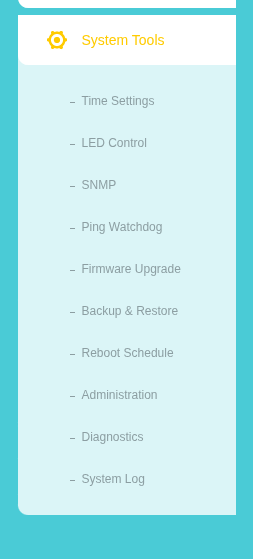
    System Tools:

    This is the last setting I configure, first thing I do is make sure that I have the correct time settings configured for this device. It’s needed many times for if I want to run some different admin jobs. I leave SNMP, Ping Watchdog, Diagnostics, and System Logs all unchecked. The only other settings that I’ve configured are my Firmware Upgrade, Reboot Schedule, and Backup and Restore. Backing up the system I usually save for last, because everything is at a point where I want it and it’s smart to back up and save your work. The other feature I place as really important is upgrading firmware, upgrading the device firmware is a good security health check to do to make sure you don’t risk running compromised and out of date devices. I refer you to TP-Link’s website to find out what new firmware they have available for download. This device through the admin portal has a handy upload feature you can use to upload the .bin file and run the update process. I highly recommend* when you do this you give the device the time it needs to finish the update. Lastly, I recommend you save the current version of your configuration before changing your password. That way if there’s an error that happens with the password you’ll have a backup you can pull from and update in place when you reset your device. Once that’s done, change your password using best practices for password creation to make it unique and personal to you. After that we should have everything configured with how we need it to be for the WAN and connected to our existing household network.

    Closing thoughts

    Well my pilgrims it’s been a good step so far to get this first part complete, the part I had trouble making sure that was configured correctly was the DHCP part of the WAN. There’s a similar setting that comes up when you’re setting up OPNSense. So I might leave this setting I did as is or change it down the line. At the moment everything is working, and the DHCP part that I have configured for the router is working and pulling a different numbered network range. Think of the ISP network being like a 198.1.1.xxx range, while mine is a 10.0.0.xxx range so that tells me that at least the WAN side of things in the router is working and pulling from my subnet I have set up for my home-lab network. I think in someway though the DHCP is still pulling from the ISP provider, because when I run an Ookla Net Speed Test it’s showing up as the provider server being from our ISP. But I’ll take the win for now. Thank you for sticking around through this setup next week we’ll start working on setting up OPNSense. We’ll do next weeks article on the configuration of the router, and then do some customizing of the router to get it to a status we want. Time to go journey some more in our wilderness, until next time, catch you at the next oasis.

  • Skipping this week

    Good afternoon my tech pilgrims, I’m going to skip this weeks article due to a lot of things I’m working on currently the network lab set up and it’s no where near ready. But I’ll follow up again in a couple of days on how the lab set up is going.

  • Next Steps

    branding avatar with the opnsense lapel button fixed to his sweatshirt.

    Inspiration:

    https://dev.to/patimapoochai/how-to-run-a-home-lab-without-an-ethernet-port-220j

    https://homenetworkguy.com/how-to/beginners-guide-to-set-up-home-network-using-opnsense

    Good evening tech pilgrims, in our journey along the road of self discovery we sometimes enter into periods of reflection and growth that can help us in our future steps that we take. One such journey that I have been wanting to take with this path that I have been on in IT has been to build a home lab.

    One of my over arching goals is to self-teach myself the skills I need to become a cybersecurity researcher. This is a more over arching goal that isn’t specific in it’s goals definite like studying for the CCNA. Yes, to me it’s more liberating to walk the self-made path and to pass fellow journeymen who are looking for there own Shangri-La or Nirvana that guides them in this wilderness that we all travel.

    Without going to far off tangent the expansive world that we live in is changing so much with new advancements being made in AI. The other frontier that I am keeping an eye on is quantum computing and what effect that will have on how we interact with these interfaces in our life. But what is the point of the home-lab idea that I am building? Well it’s to confront two big points, the first being that I need a place that is somewhat isolated and safe from the world to build and practice on. The other is to host actual services that are pointing to the web (in a safe way) that I can access from anywhere. My over arching plan is to also have tunneling services running with the main services to have a management tool to configure them without the need to worry about local Public wifi or secure networks that I am behind.

    I think the high for me at the end of the day is also the success that comes from taking projects that other people have built and getting them to talk to one another as well as the world. That kind of joy still gets my blood boiling and my heart racing. So come with me on this journey as we start building my digital castle…I have to ask in my robot voice, “are you ready Player One?” Let’s get building!